SOP 01 · Getting started · 2026-10-12
Activate your account and sign in
Activate the account provided by your manager and open your assigned work.
Before you start
Use your own invitation and the approved DK Valet Workforce installation.
Open Invitation email or Sign in
Step 1 Open your invitation
Open the activation link in the invitation email. Follow the password setup screen. If the link has expired or was cancelled, contact the person who invited you.
Step 2 Set your permanent password
Enter and confirm the password requested on screen. If you were issued a temporary password, complete the required permanent password change before opening work.
Step 3 Sign in
Open the Operations website or installed mobile app. Enter your work email and password, then select Sign in. Complete device unlock if prompted.
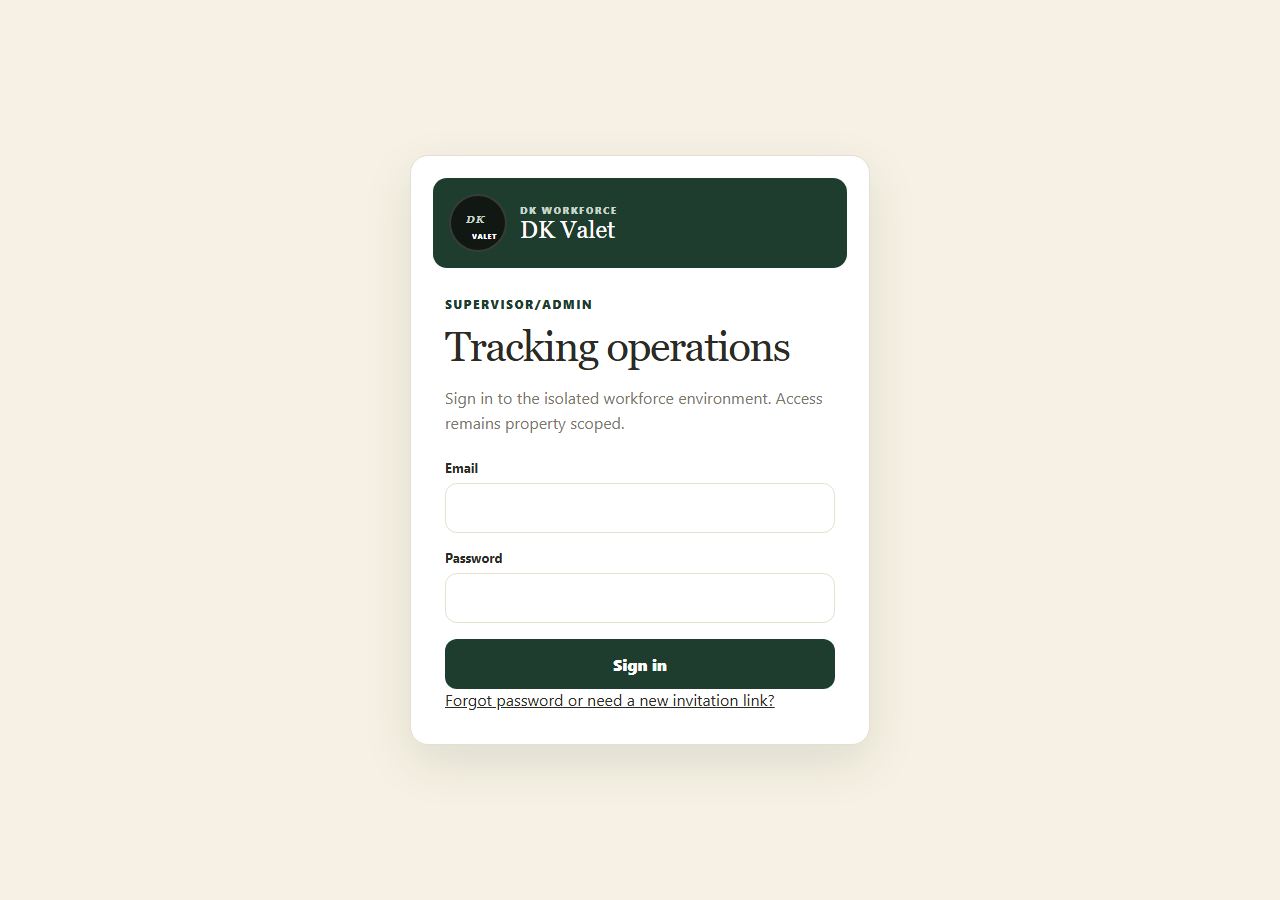
Sign in to the Operations website using your workforce account. Application screenshot with training data. Select the picture to enlarge. Step 4 Check your workspace
Associates use My work. Managers and supervisors use their available management workspace. Confirm the property before taking any action.

Check your result
Your assigned workspace opens and your authorized properties are available.
If something goes wrong
Missing properties need an access review by an administrator. Creating a second account will not fix access.