SOP 02 · Getting started · 2026-10-12
Reset a password and unlock the app
Recover access to your existing account.
Before you start
Have access to the email address on your workforce account.
Open Sign in > Forgot password or Reset password
Step 1 Request a reset
On the website select Forgot password. On mobile enter your email and select Reset password.
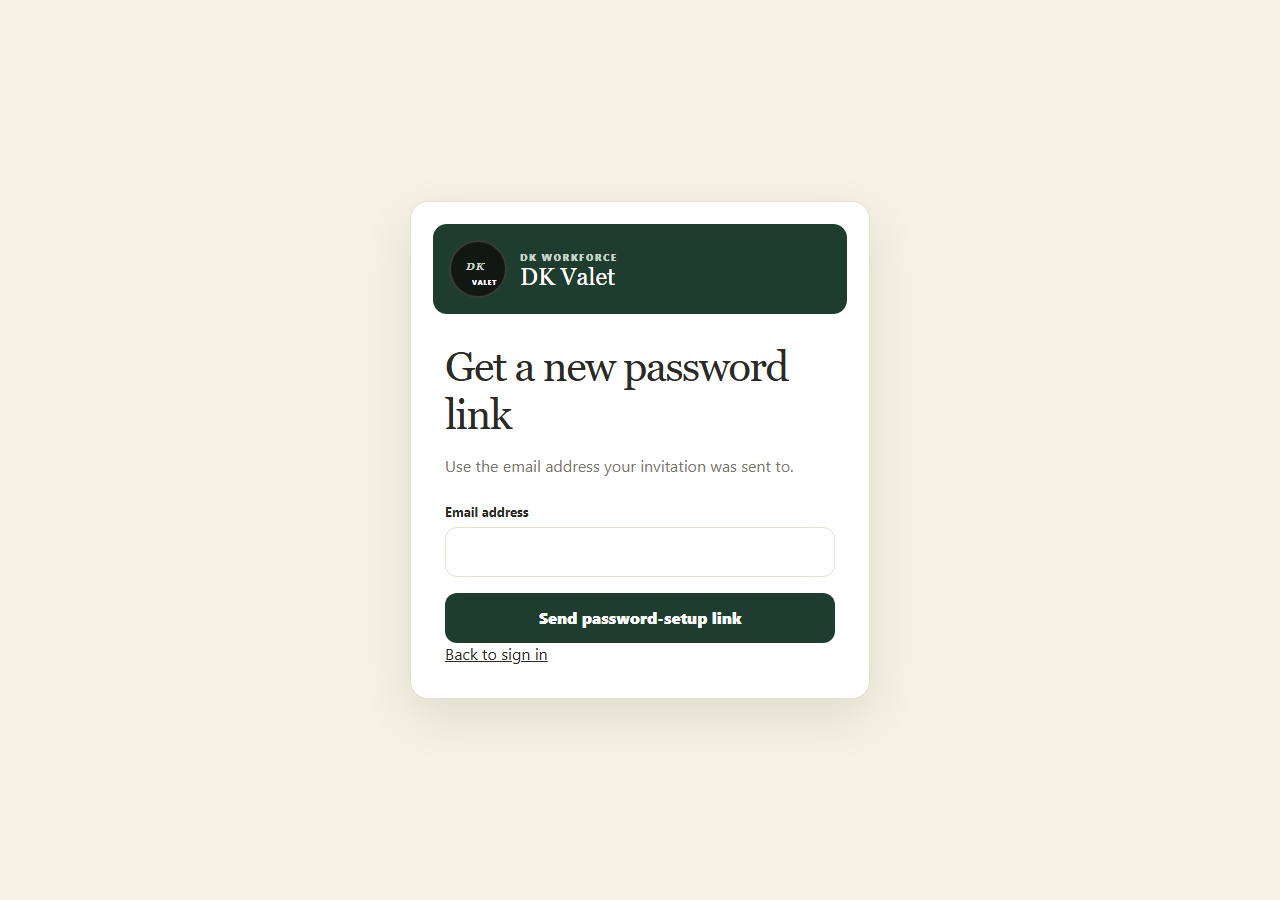
Request an email to recover your existing workforce account. Application screenshot with training data. Select the picture to enlarge. Step 2 Open the latest email
Use the latest password reset link and follow the confirmation screen. Keep the link private.
Step 3 Save a new password
Complete the password and confirmation fields, submit, then return to sign in.
Step 4 Unlock an existing session
If mobile shows Session locked, select Use device unlock. Use another account signs out and returns to account entry.
Check your result
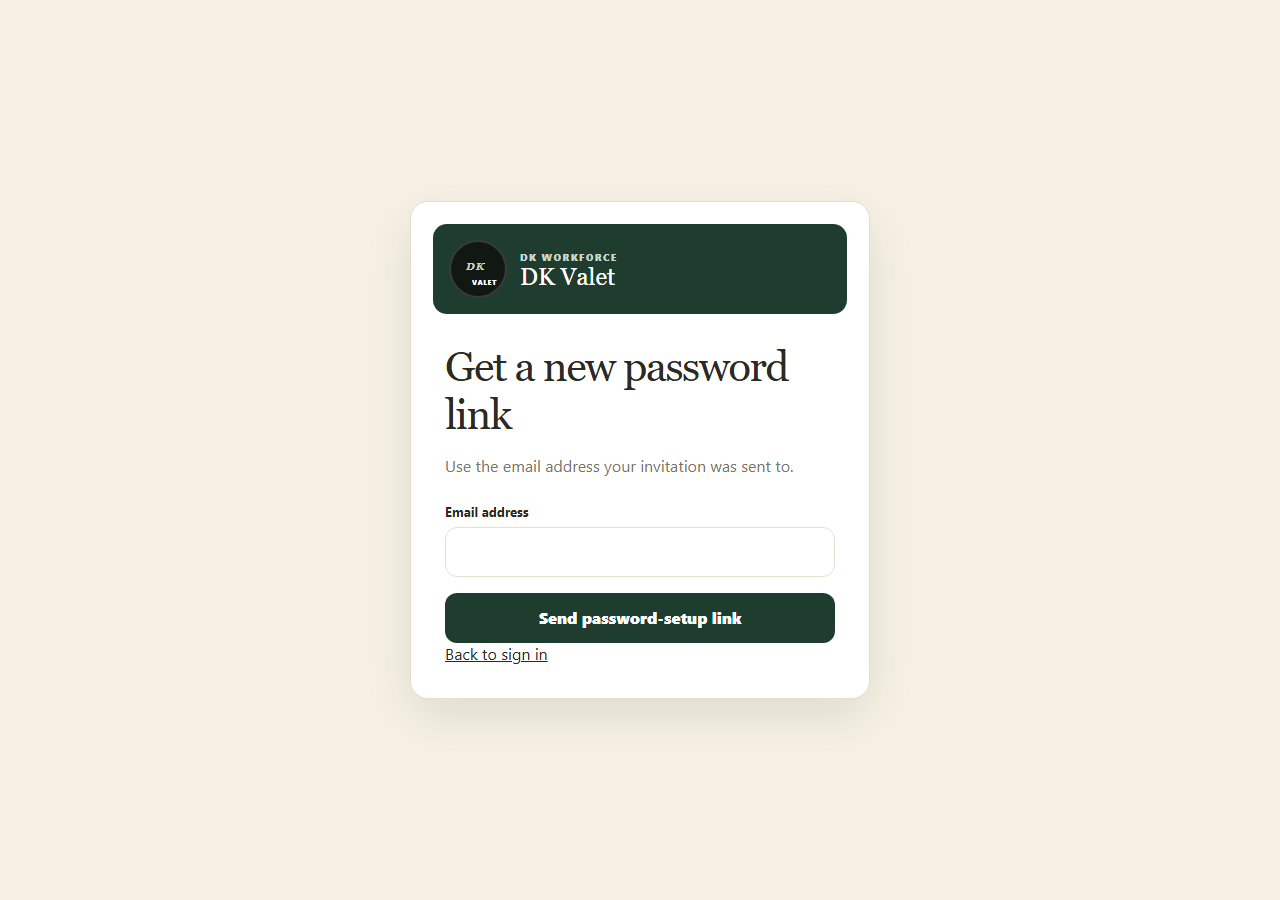
You can sign in with the new password or unlock your existing session.
If something goes wrong
If a link is invalid, request a fresh one. If delivery or account status still prevents access, contact your supervisor.