SOP 03 · Getting started · 2026-10-12
Find your workspace and the correct property
Choose the correct task and property before reading or changing information.
Before you start
Your account must have active access to the property.
Open Operations or My work
Step 1 Choose daily work
On web use Today, Schedule, Review and People. On mobile managers use the daily workspace tabs; associates start at My work.
Step 2 Open management when needed
Use Manage for setup and administration. On mobile, open Company run questions for company scope, or choose a property then Run questions. Return with the displayed Back action; check unsaved-draft warnings.
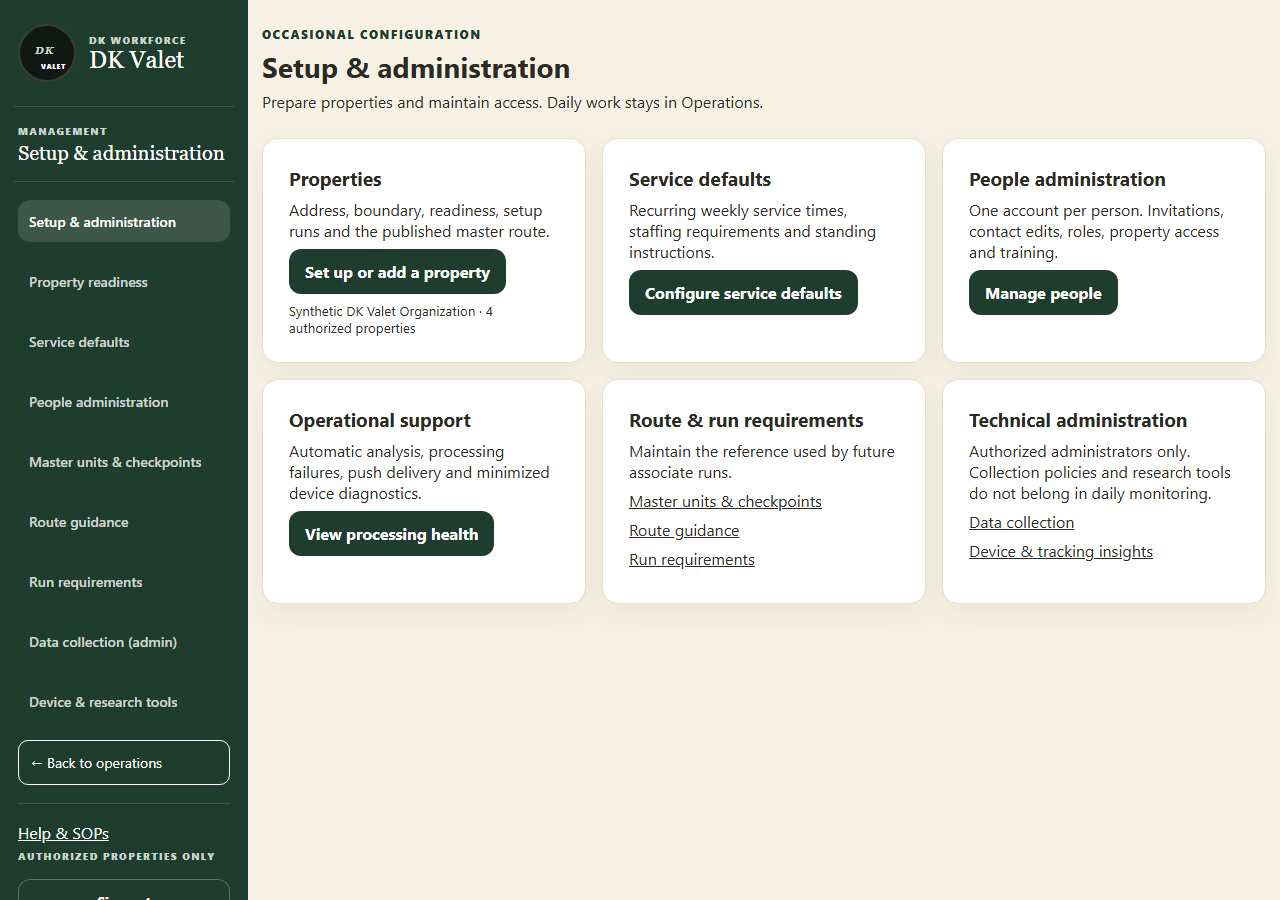
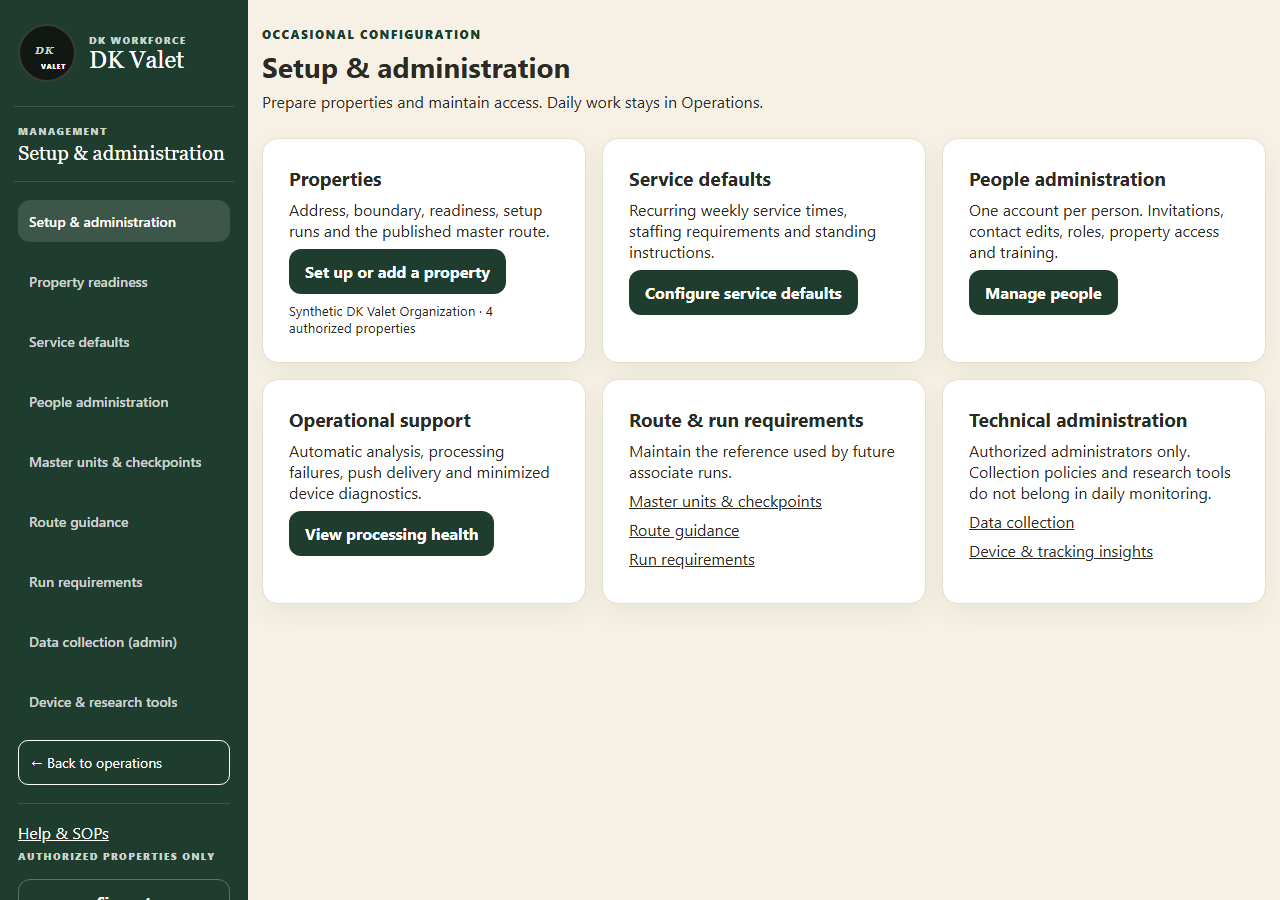
Setup & administration: use the property selector and the task controls shown. Application screenshot with training data. Select the picture to enlarge. Step 3 Select and verify the property
Use the property selector or Find property search. Read the property name on the destination and its displayed time zone.
Step 4 Use the task navigation
Use the screen Back or Home action to leave a task. Page through lists when more results exist. Clear filters if the list appears empty.
Check your result
The screen header and selected property match the work you intend to perform.
If something goes wrong
An empty authorized-property list is an access issue. Ask an administrator to review your assignment.