SOP 11 · People and access · 2026-10-12
Record property access and training eligibility
Make a worker eligible for the property when the training requirement has been satisfied.
Before you start
Use an existing workforce identity and verify the training status through your normal process.
Open Manage > People > Property access & training
Step 1 Select property and worker
Open the property access and training screen, choose the property and locate the employee in the organization roster.
Step 2 Review the current record
Check existing assignment, effective dates and training status before changing them.
Step 3 Record the approved status
Use the access/training form to enter the intended effective access and actual training status. Provide the required audit reason.
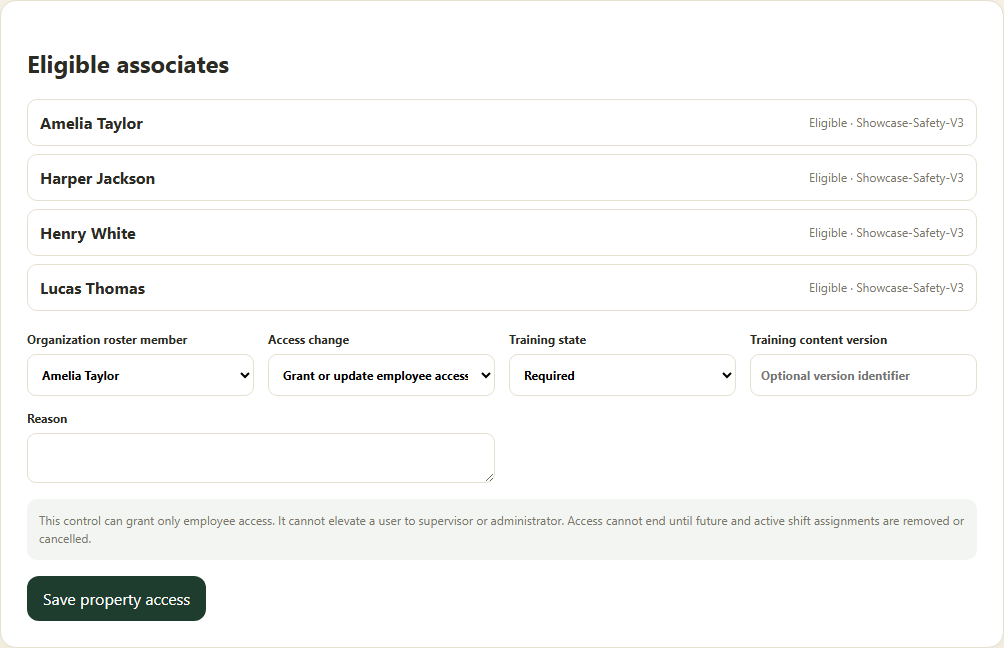
Review eligibility and use the property access and training form. Application screenshot with training data. Select the picture to enlarge. Step 4 Save and verify eligibility
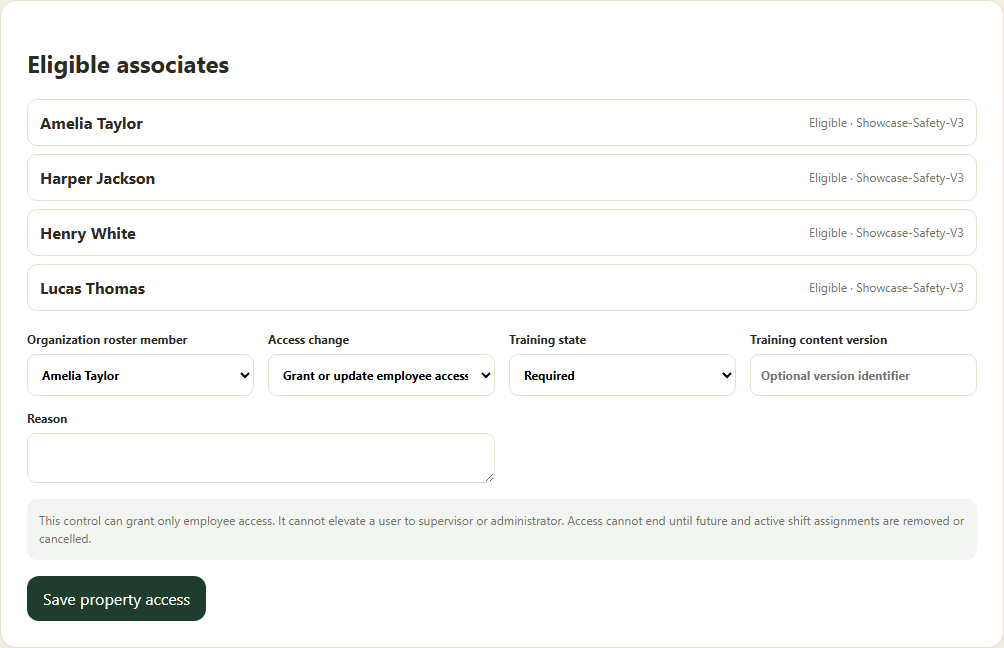
Submit and refresh. Check the employee appears as eligible for the full shift window when assigning a shift.
Check your result
The property roster displays the intended access and training status.
If something goes wrong
If the employee is not selectable, review effective dates, account status and training. Do not label incomplete training eligible to bypass scheduling.