SOP 07 · Scheduling · 2026-10-12
Set weekly service times and staffing defaults
Set the recurring service windows that scheduling uses.
Before you start
Know the property-local workdays, start and end times, and people needed.
Open Manage > Service defaults
Step 1 Choose the property
Open Service defaults on web, or Manage then the property and Weekly service times on mobile. Verify the property time zone.
Step 2 Set the common time
Set start and end once for the selected service days. New templates default to 8 PM through 10 PM; existing saved times are preserved.
Step 3 Choose days and headcount
Select the weekdays requiring service and enter People needed. Use Different times by day or extra windows for exceptions rather than overwriting them.
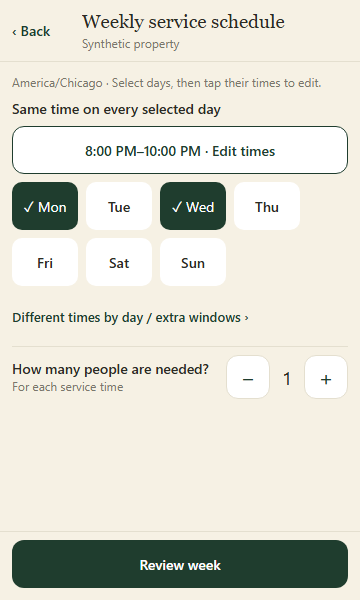
Choose service days, then set one common start and end time and the people needed. Application component preview with training data. Select the picture to enlarge. Step 4 Review and publish
Review every selected day, overnight end time and headcount. Enter the required reason, then save or publish the week. Check the resulting version.
Step 5 Assign dated shifts
Open Schedule to assign people. Property-local start and end times appear beside property names. Saving defaults does not assign or accept a shift.
Check your result
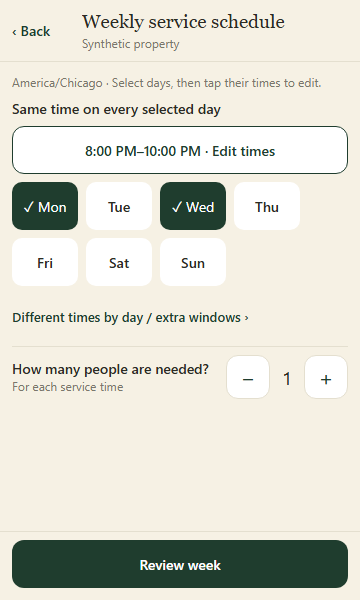
The saved weekly service windows and required headcount appear in the staffing calendar.
If something goes wrong
If a day has no service time, add one before staffing it. Check the property time zone and date when a window appears on an unexpected day.