SOP 14 · Scheduling · 2026-10-12
Assign people to a service window
Assign eligible people and review overlap warnings before saving.
Before you start
Property access and training must cover the entire shift.
Open Schedule > Service window
Step 1 Open the service window
Select the correct property, week and window in Schedule. Review time, required headcount and current gaps.
Step 2 Choose the workers
In Who is working? select eligible employees. Read any eligibility or overlap messages. Add shift instructions if needed.
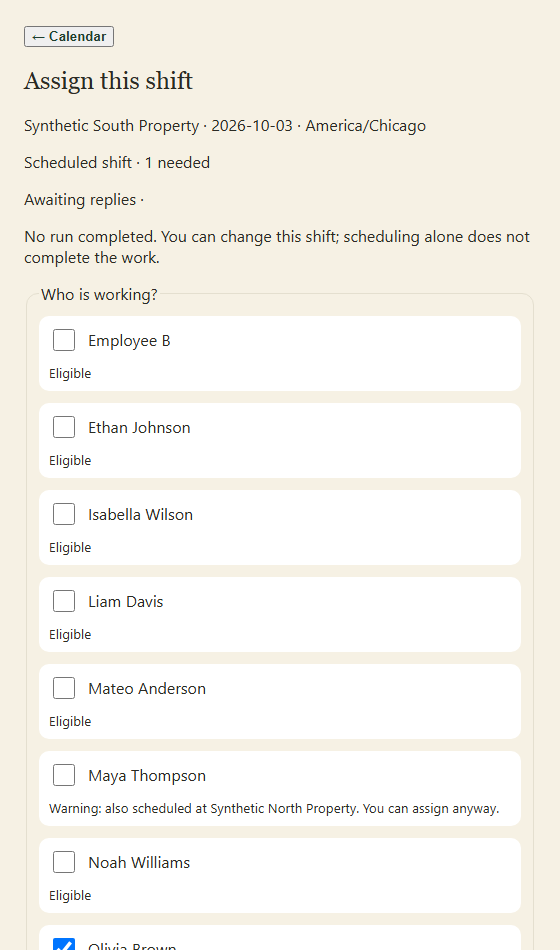
Select eligible people and read overlap warnings. Scroll to the reason and review controls below. Application screenshot with training data. Select the picture to enlarge. Step 3 Review the change
Enter Reason for change and select Review assignments. Read the confirmation and any overlap warning.
Step 4 Confirm assignments
Confirm assignments if correct. If a warning is acceptable after review, use Save anyway. Cancel to revise the draft.
Step 5 Track the replies
Refresh the calendar and check the new assignments. They await each person’s reply; follow up on outstanding acceptance.
Check your result
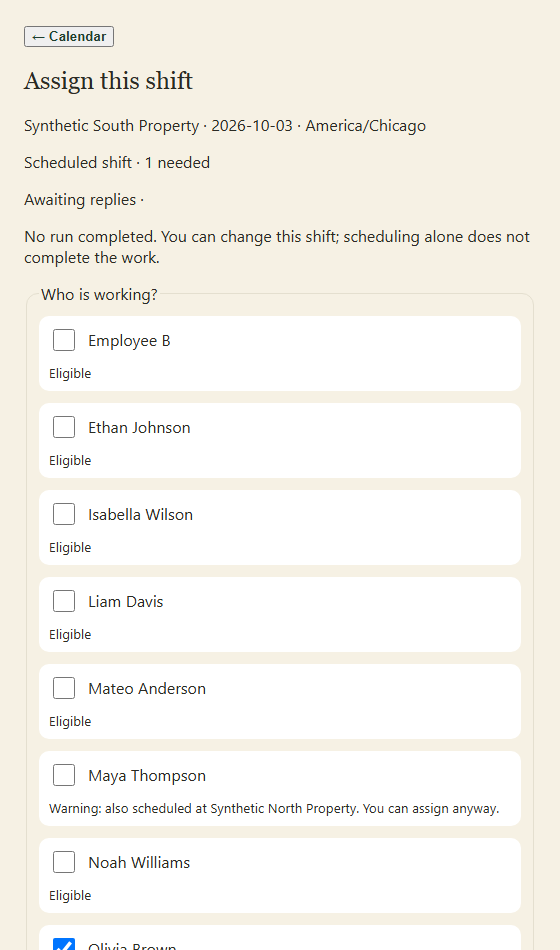
The calendar shows the intended assignees and their response status.
If something goes wrong
An overlap warning may be advisory, but access and training restrictions still apply. Protected workers on an active run cannot be removed.