SOP 50 · Scheduling · 2026-10-12
Build copy or bulk edit shifts
Review a multi-shift change before applying the batch.
Before you start
Verify the selected properties, dates and eligible workers. A batch is limited to 100 operations.
Open Schedule > Property schedule > Portfolio schedule
Step 1 Open the batch tools
Open Property schedule from Schedule, then expand Build shifts across properties to use the Bulk schedule composer.
Step 2 Build or reuse the draft
Choose properties, service dates and eligible employees per property. Set Starts locally, Ends locally, notes and reason. Optionally load a device template or use Copy previous week, then inspect every copied date.
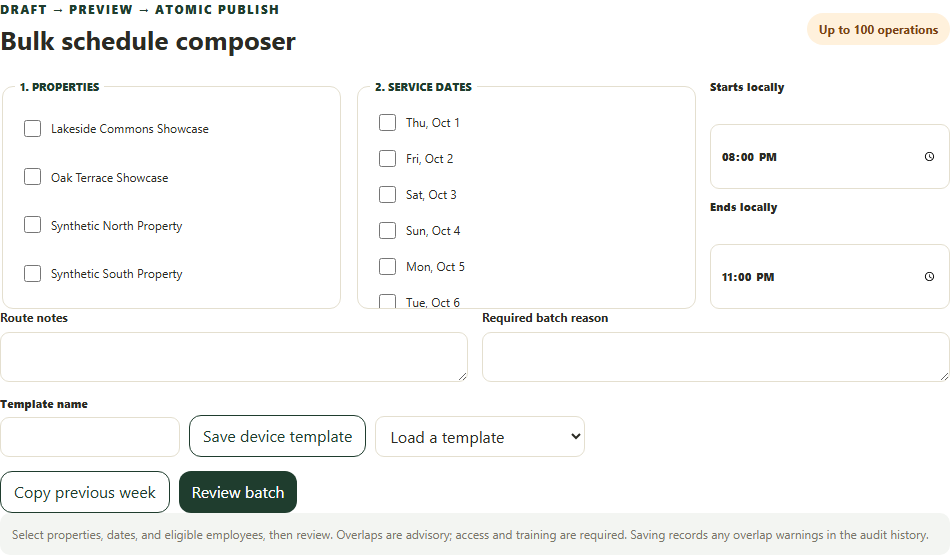
Choose properties, dates and employees, then review the complete batch. Application screenshot with training data. Select the picture to enlarge. Step 3 Review and apply
Select Review batch. Read every operation and warning, then Apply reviewed batch only when the full batch is correct.
Step 4 Bulk edit existing shifts
Select eligible shifts in the portfolio schedule. In Bulk shift action choose Move or reassign or Cancel selected shifts. Set the change and required reason, then Review selected changes and Apply reviewed batch.
Step 5 Verify the result
Inspect the saved shifts and pending acceptance. Save device template stores a reusable draft on this browser; it is not a published schedule or shared server template.
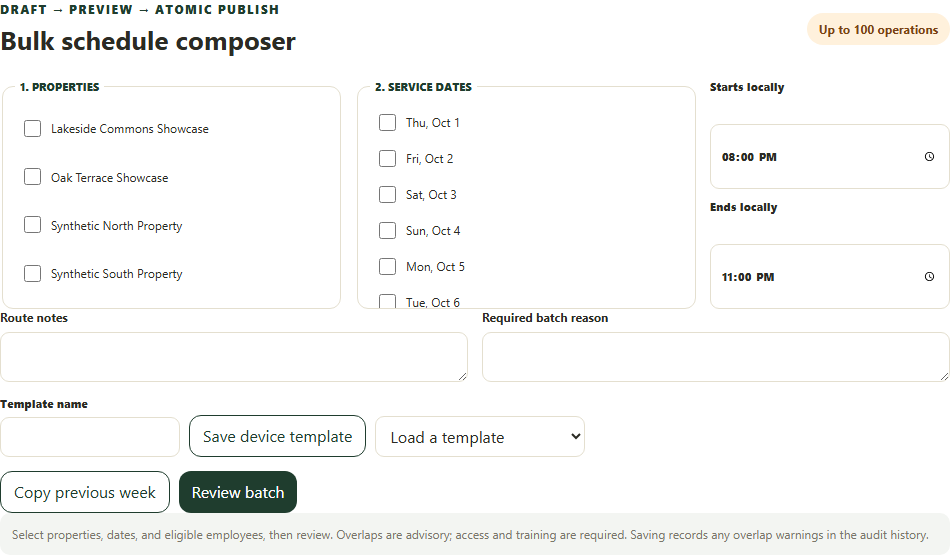
Check your result
The reviewed batch is applied together and the calendar shows the intended dated shifts.
If something goes wrong
Clear selections and refresh if a shift has changed or started. Access/training restrictions still apply even when overlap warnings are advisory.