SOP 17 · Scheduling · 2026-10-12
Request coverage and assign a replacement
Find a qualified replacement and complete the separate assignment change.
Before you start
Identify the shift and employee being replaced.
Open Review > Time off & coverage
Step 1 Open a coverage request
Choose the property and shift, identify the worker needing replacement and enter the required reason or note. Submit the request.
Step 2 Review candidate responses
Refresh coverage requests and inspect candidates’ availability, eligibility and responses.
Step 3 Choose the candidate
Use the candidate decision controls to select the suitable person or decline a response, with the required note.
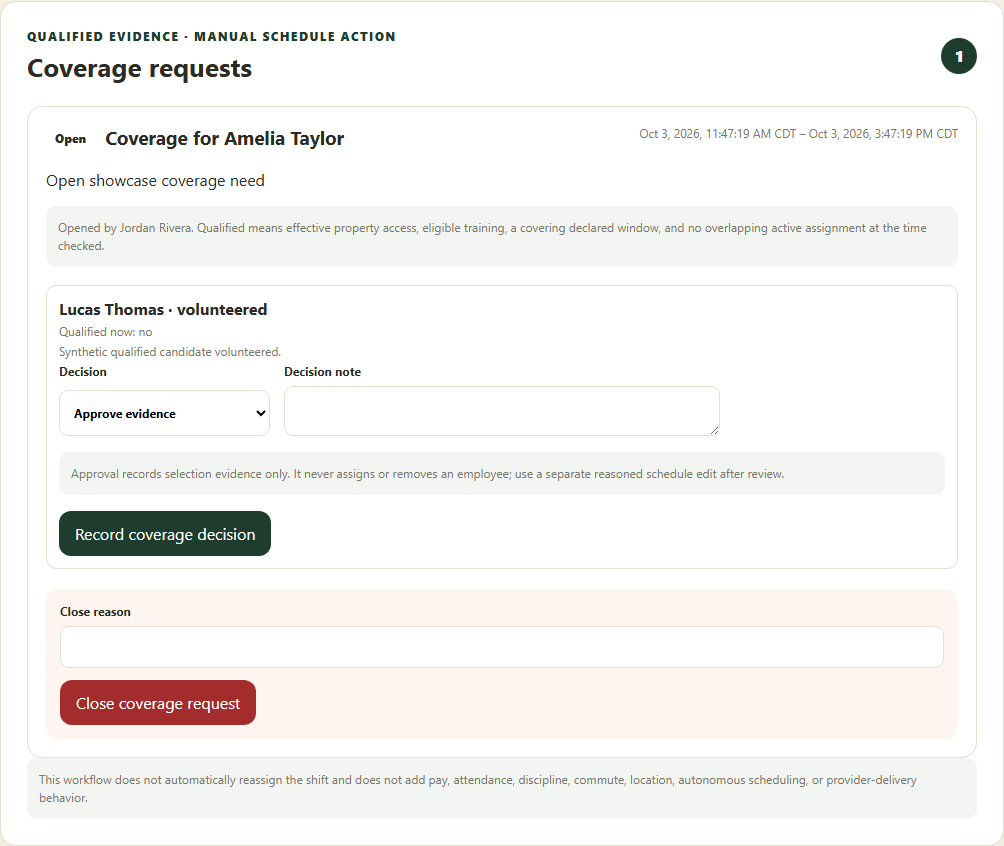
Candidate selection and the separate shift assignment are distinct actions. Application screenshot with training data. Select the picture to enlarge. Step 4 Finish the assignment
Open Finish assignment for the selected replacement. Review the proposed employee list, retain other workers and save the separate schedule change.
Step 5 Confirm acceptance or cancel the request
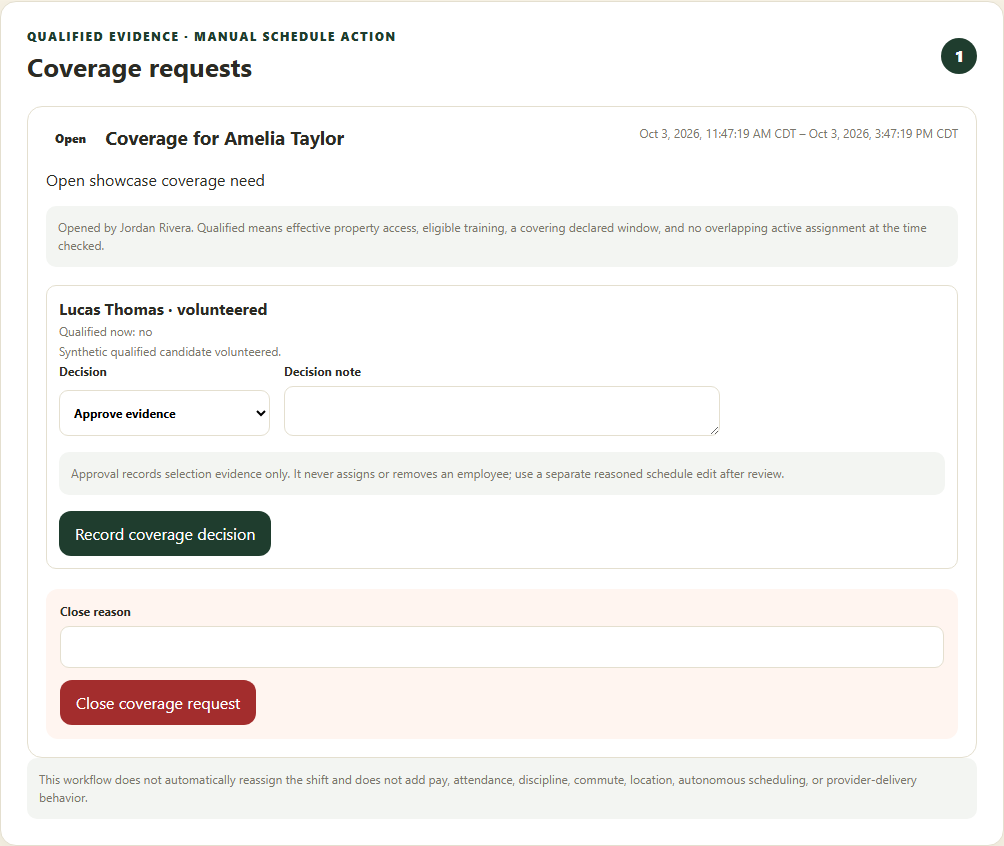
Check the replacement in Schedule and track their acceptance. If coverage is no longer needed, use the request cancellation control and reason.
Check your result
The replacement is assigned in the calendar; selection alone is not treated as completed staffing.
If something goes wrong
If the shift changed or started, the replacement draft needs review. Reopen the current shift before changing assignments.