SOP 13 · Scheduling · 2026-10-12
Read the staffing calendar
Find open service windows and distinguish assignment from acceptance.
Before you start
Recurring service times should already be saved for the property.
Open Schedule
Step 1 Choose the week and property
Open Schedule. Use Previous week or Next week and the Property filter. Times are local to each property.
Step 2 Filter staffing status
Use Needs people, Waiting for acceptance or Fully accepted to find the work requiring attention.
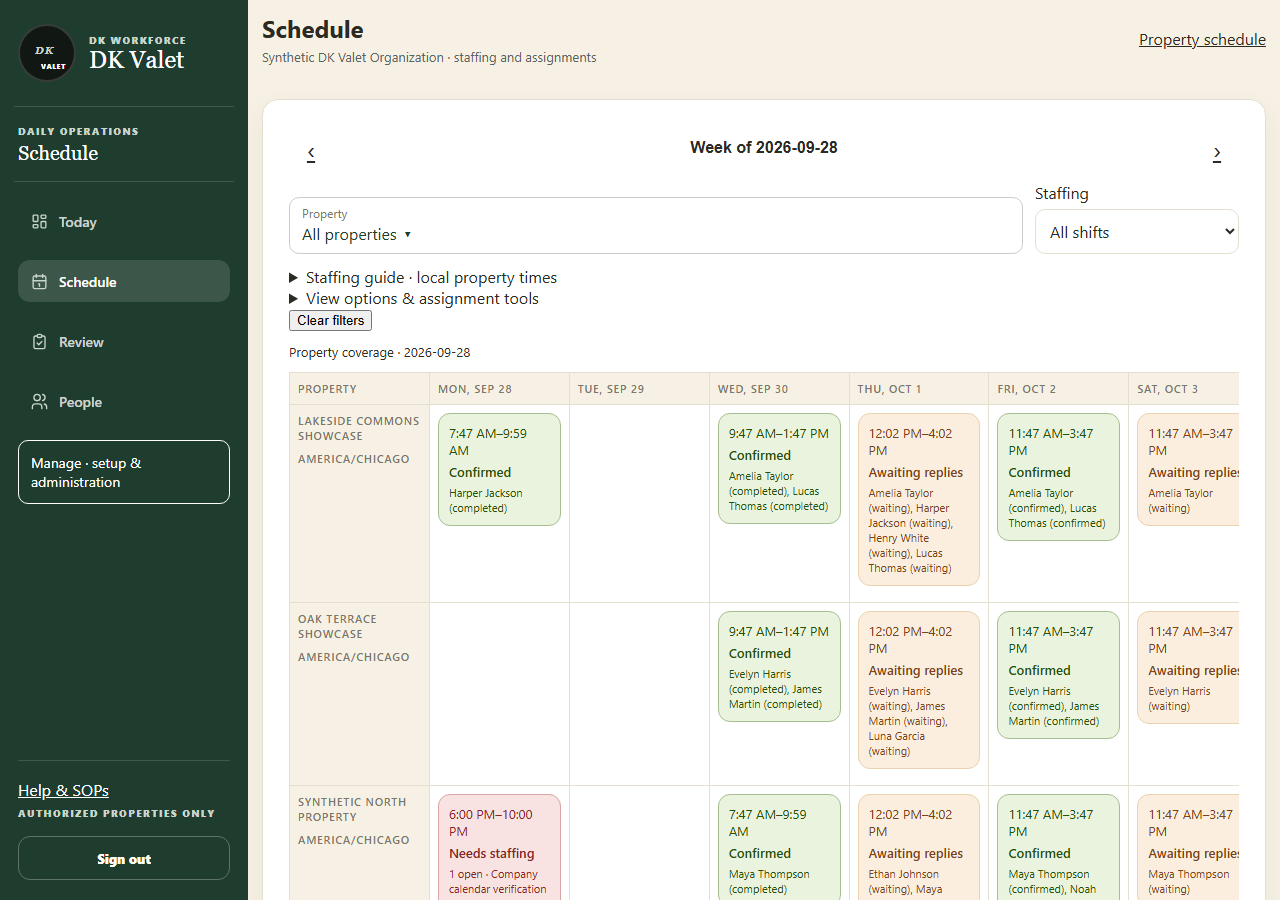
Schedule: use the property selector and the task controls shown. Application screenshot with training data. Select the picture to enlarge. Step 3 Open a day or shift
Select a shift card to see the required people, current assignments and gaps. On phones use the day selector and pagination.
Step 4 Inspect person view when needed
Open View options & assignment tools and switch Calendar rows to Person. Select a person to review their week.
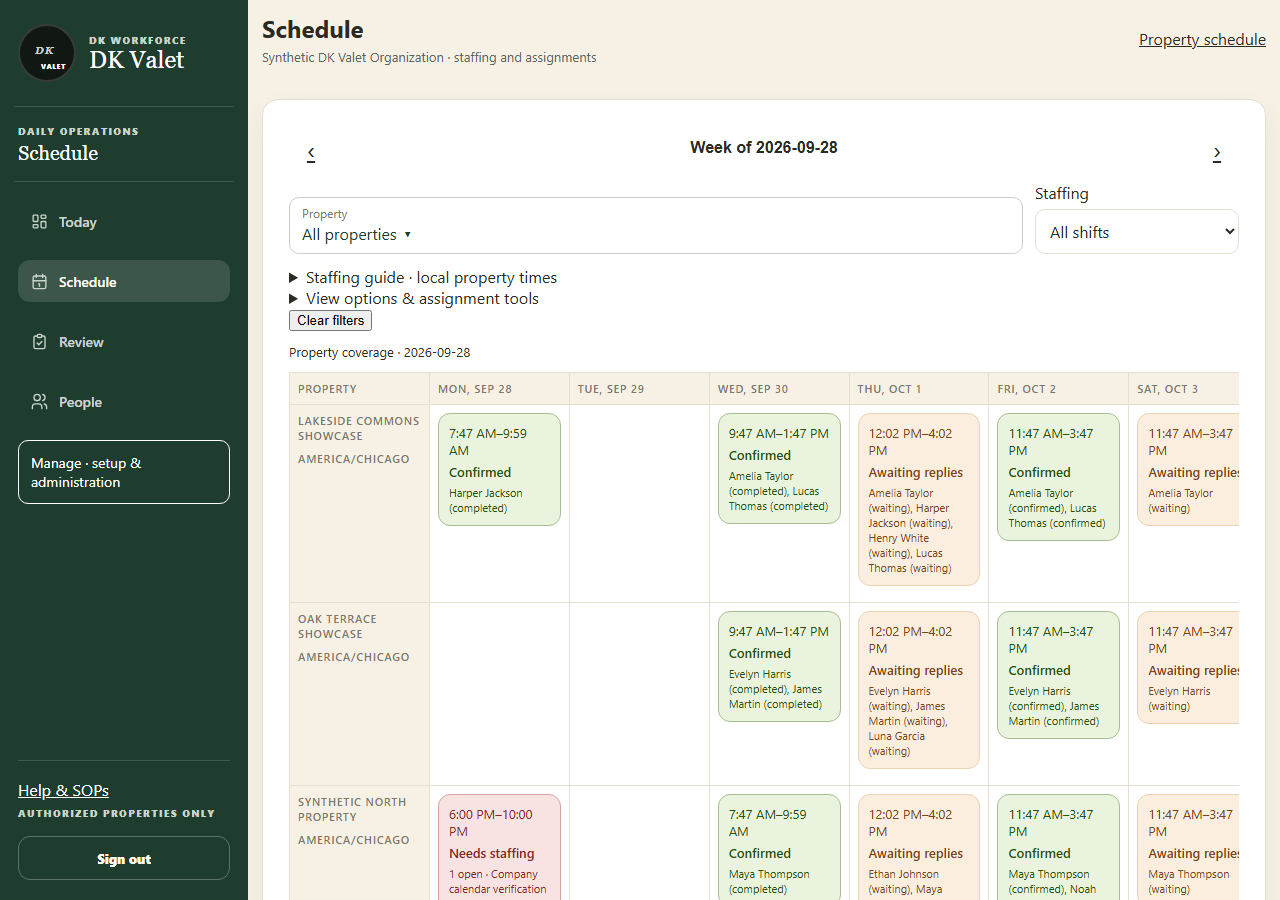
Check your result
You can identify uncovered time and shifts still waiting on worker replies.
If something goes wrong
Fully accepted means staffing is confirmed; it does not mean the run was completed. Clear filters before concluding a shift is missing.