SOP 15 · Scheduling · 2026-10-12
Create edit or cancel a dated shift
Maintain a specific shift while preserving work already recorded.
Before you start
Confirm the property, local date, employees and whether a run has started.
Open Property Schedule or Schedule & requests
Step 1 Open the property schedule
Use the property schedule tools to create a shift or open the existing dated shift for editing.
Step 2 Enter permitted changes
Set Starts (property time), Ends, Property phase, Route notes and eligible employees. Locked fields remain unchanged when work has started.
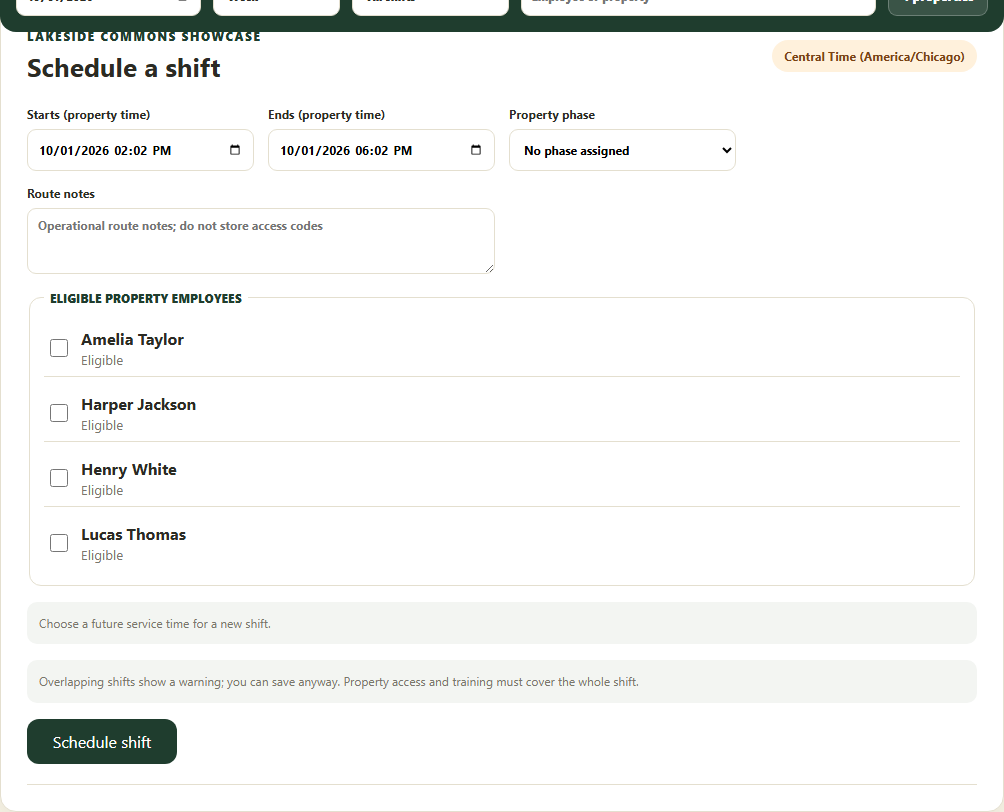
Use property-local dates and eligible employees for a dated shift. Application screenshot with training data. Select the picture to enlarge. Step 3 Review and save
Use Schedule shift or Save schedule change. Read the overlap confirmation and save only if the details are correct.
Step 4 Cancel only when appropriate
For an eligible shift, enter Cancellation reason and use Cancel shift. A started or protected shift may block cancellation.
Step 5 Check the saved outcome
Refresh and inspect assignments, status and change history. Workers receive schedule updates that they must review.
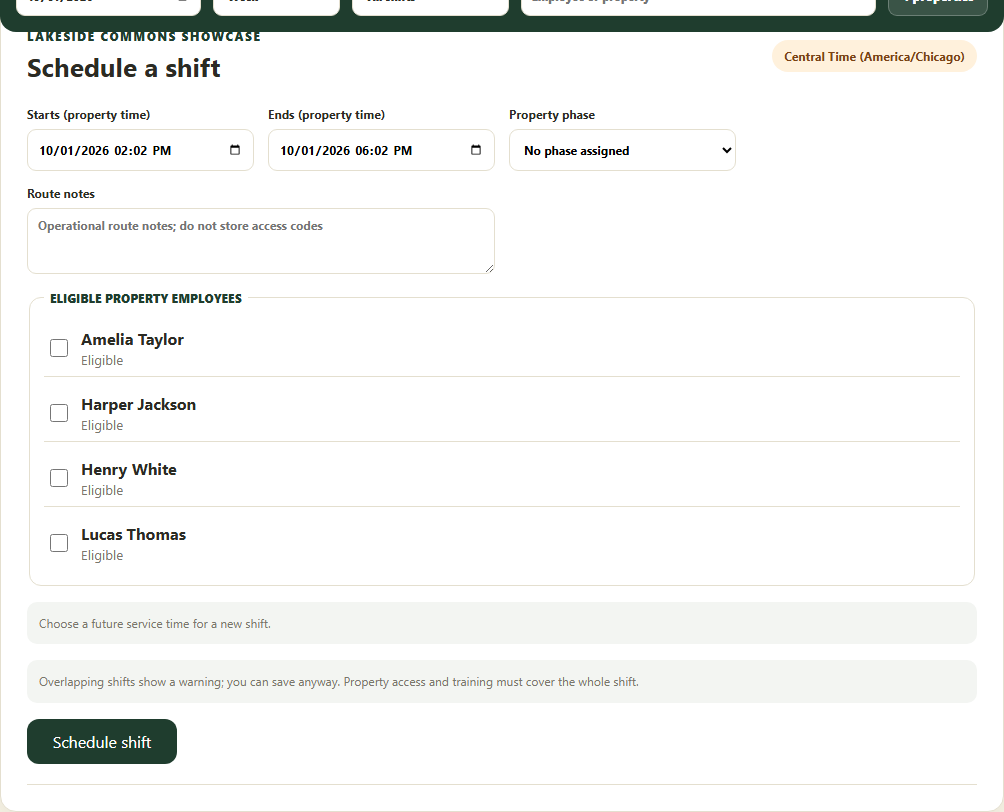
Check your result
The dated shift reflects the saved change and retains its historical work.
If something goes wrong
When a field is locked, read its on-screen guidance. Use a separate future shift instead of trying to rewrite active or historical work.