SOP 32 · Associate work · 2026-10-12
Use My work and Account and help
Find the next shift, outstanding replies and supervisor contact.
Before you start
Sign in with your own workforce account.
Open My work
Step 1 Refresh your work
Tap Refresh and read the update or warning message. Counts marked unknown need another refresh before you rely on them.
Step 2 Open the next action
Use Prepare for this shift, Return to run / finish, Complete run closeout or Review finished run according to the status shown.
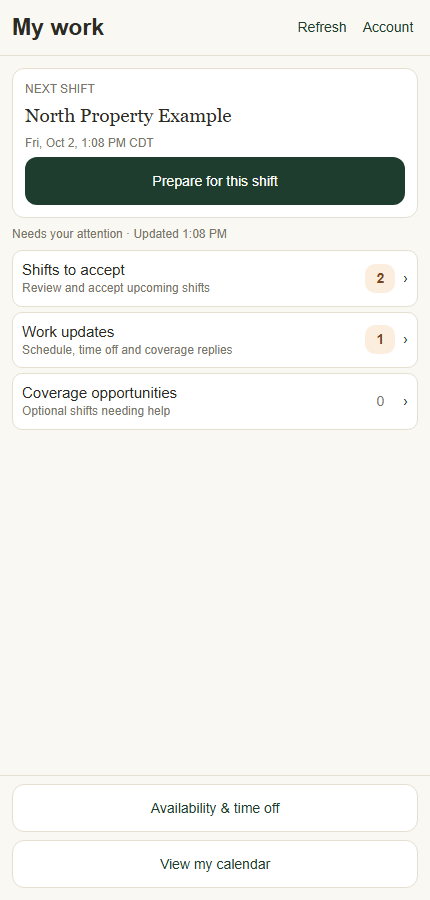
My work shows the next shift, replies and planning actions. Application component preview with training data. Select the picture to enlarge. Step 3 Check requests and updates
Open Shifts to accept, Work updates or Coverage opportunities. Use View my calendar and Availability & time off for planning.
Step 4 Open Account
Use Account to inspect notification status, open phone settings or contact your supervisor. Managers can switch to their manager workspace when available.
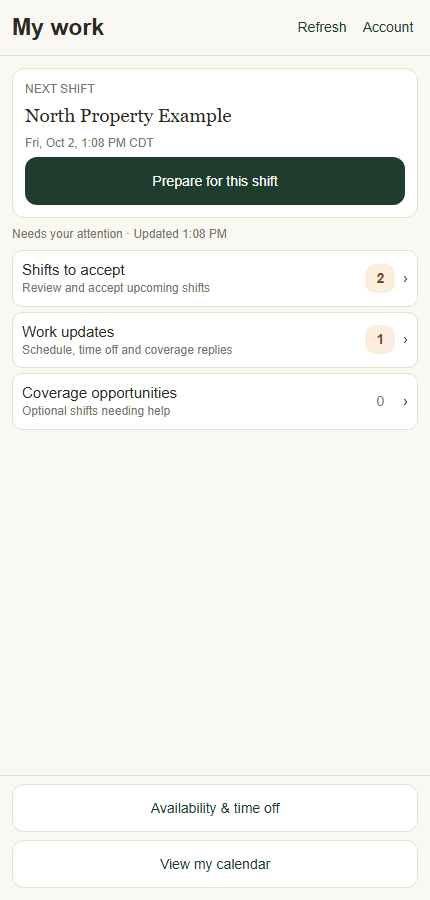
Check your result
You can identify the next task and reach your supervisor when a task is blocked.
If something goes wrong
If work data did not load, refresh before assuming there are no assignments or updates.