SOP 35 · Associate work · 2026-10-12
Set recurring weekly availability and review extra hours
Set personal recurring hours across currently assigned properties without changing shifts.
Before you start
Managers need management access to all of the employee’s assigned properties to edit personal hours.
Open My work > Availability & time off or People > Person > Work hours
Step 1 Open personal hours
From My work select Availability & time off. Managers open the person in People and use the work-hours action. Check whose hours are displayed.
Step 2 Review the current week
Use Weekly hours and the week arrows. Tap a day for details. Refresh hours if the record is stale.
Step 3 Edit the recurring plan
Select Edit weekly hours. Set the effective date and Hours time zone. Enable the days the person is available and use each day’s editor to set start/end time and AM/PM.
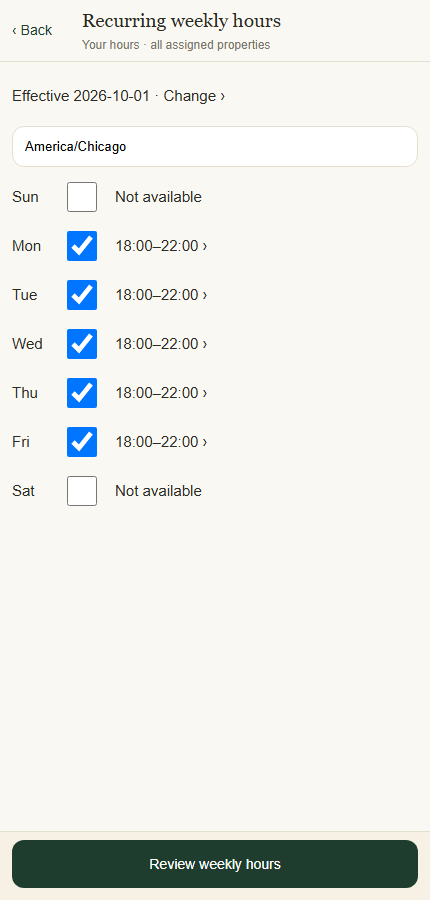
Set the effective date, time zone, available days and recurring hours. Application component preview with training data. Select the picture to enlarge. Step 4 Review and confirm
Select Review weekly hours. Check effective date, time zone and every enabled day, then Confirm save. Availability does not assign a property or shift.
Step 5 Review earlier extra hours
If Extra hours is shown, inspect earlier one-time availability windows. Associates can open one, choose Remove window and confirm the reviewed change.
Check your result
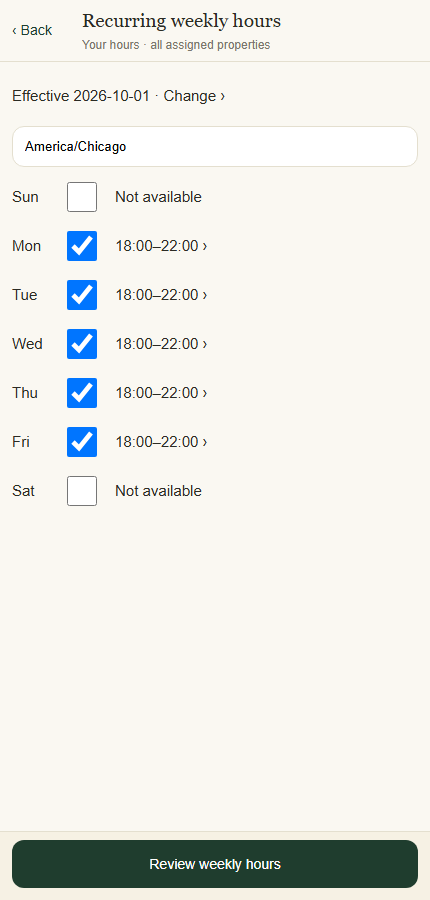
Weekly hours shows the effective recurring plan; any earlier extra-hour window remains separate.
If something goes wrong
If a save is unconfirmed, use Resume unconfirmed save and Retry same save. Do not create a second change while the first result is unknown.