SOP 36 · Associate work · 2026-10-12
Request or cancel time off
Request time away and track the manager’s decision.
Before you start
The current mobile request applies to all currently assigned properties. Managers decide each property’s request separately.
Open My work > Availability & time off > Time off
Step 1 Open your personal hours
From My work select Availability & time off, then Request time off.
Step 2 Set dates and hours
Choose First day and Last day. Keep All day time off enabled for whole days, or edit the start/end hours. Verify the displayed time zone and assigned-property count.
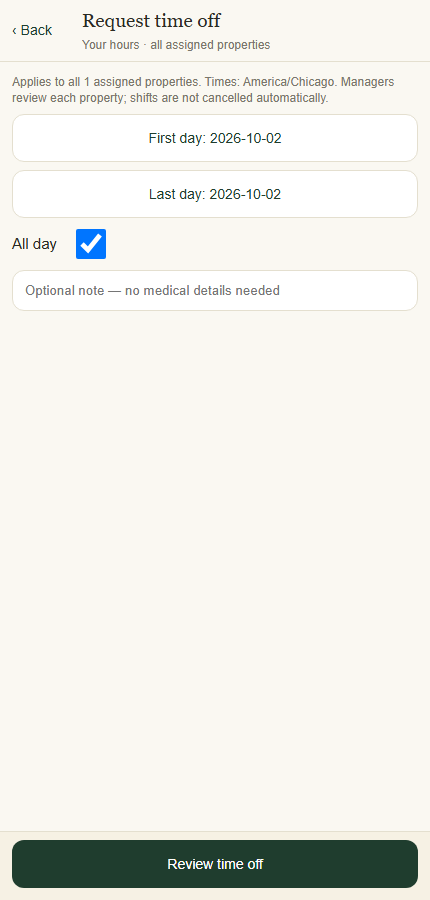
Review the time zone and all assigned properties before requesting time off. Application component preview with training data. Select the picture to enlarge. Step 3 Review your request
Add an optional note without medical details. Select Review time off. Check the full interval and the notice that it applies to all currently assigned properties.
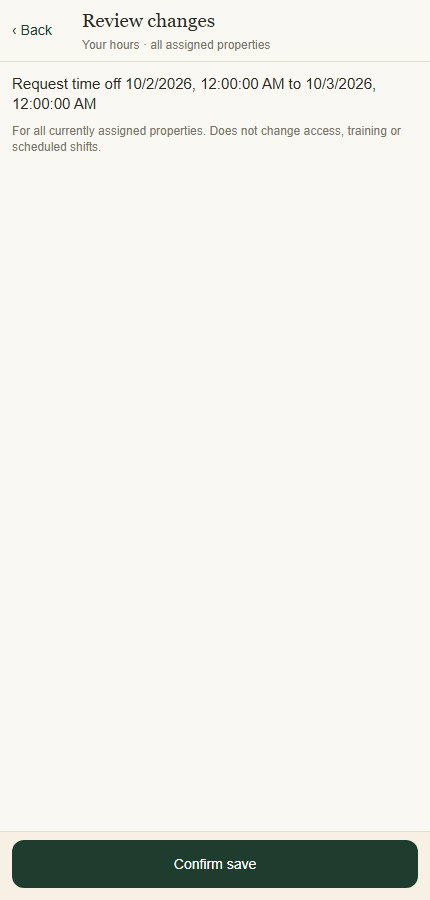
Confirm save applies the reviewed request; existing shifts stay unchanged. Application component preview with training data. Select the picture to enlarge. Step 4 Save and inspect decisions
Select Confirm save. Open the Time off tab and tap the saved group to inspect each property’s status and manager response.
Step 5 Cancel active requests when needed
Open the saved time-off group, choose Cancel active requests where offered, review the interval and Confirm save. Refresh and check each resulting status.
Check your result
The request and its current decision are visible in your list.
If something goes wrong
A time off request, even if approved, does not automatically cancel your existing assigned shift. Contact your supervisor about conflicting work.