SOP 34 · Associate work · 2026-10-12
Read work updates and reply to coverage opportunities
Acknowledge changes and respond to optional coverage requests.
Before you start
Refresh My work before acting on an old notification.
Open My work > Work updates or Coverage opportunities
Step 1 Open Work updates
Read the schedule, time off or coverage update. Check its property and dates, including old versus new times where shown.
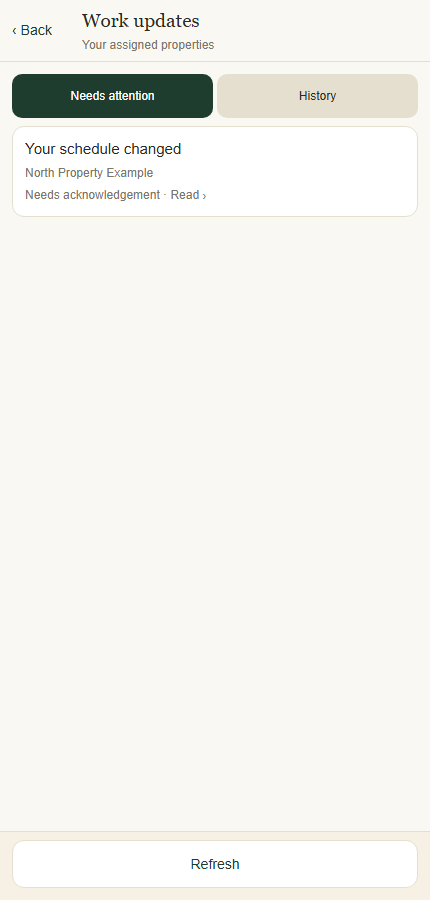
Work updates retains changes that need your attention. Application component preview with training data. Select the picture to enlarge. Step 2 Acknowledge the update
Use the receipt or acknowledgment control. Then open the schedule if the assignment itself still needs your response.
Step 3 Open Coverage opportunities
Read each offered property, interval and request. Use the interested/available or decline response offered on screen.
Step 4 Check the final assignment
Refresh replies and your calendar. Volunteering for coverage does not itself assign the shift; wait for the manager’s selection and schedule update.
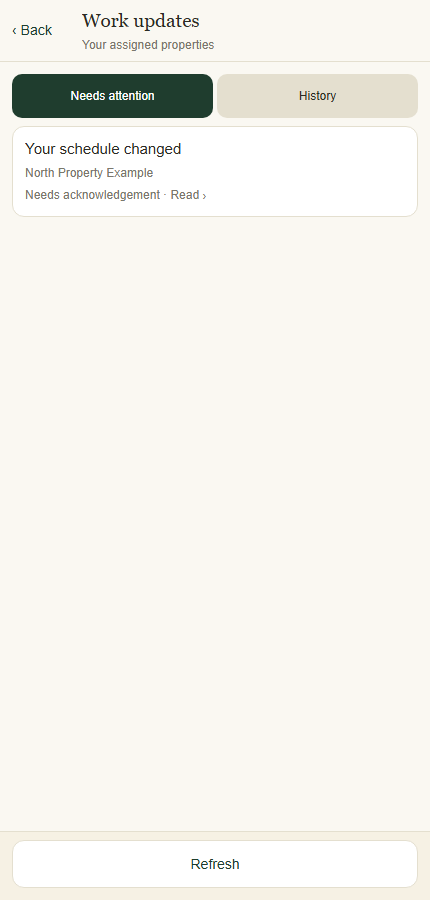
Check your result
Your receipt or coverage response is saved and you know whether a shift was actually assigned.
If something goes wrong
Push notifications can be delayed. Work updates in the app remain the place to review changes.