SOP 38 · Associate work · 2026-10-12
Answer run questions and add photos
Save truthful answers and requested photos before opening the route.
Before you start
Clock-in must already be accepted; authorized route collection has started.
Open After accepted clock-in > Run questions
Step 1 Read the due questions
Company questions appear before property questions. Check the answer and photo requirements. The list is fixed when this step first opens, including after returning, restarting or crossing an expiration date offline.
Step 2 Answer and capture
Choose Yes, No or Not applicable truthfully. When a photo is required, take and review it, then use the photo to save the answer and image together. Cancelling capture leaves the question incomplete.
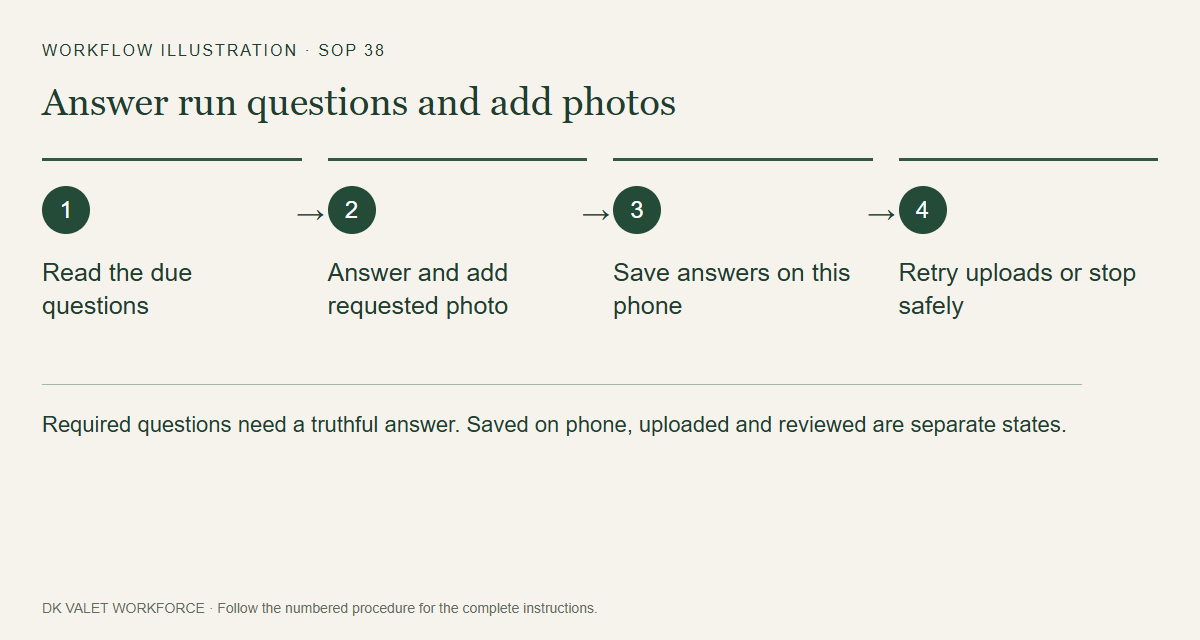
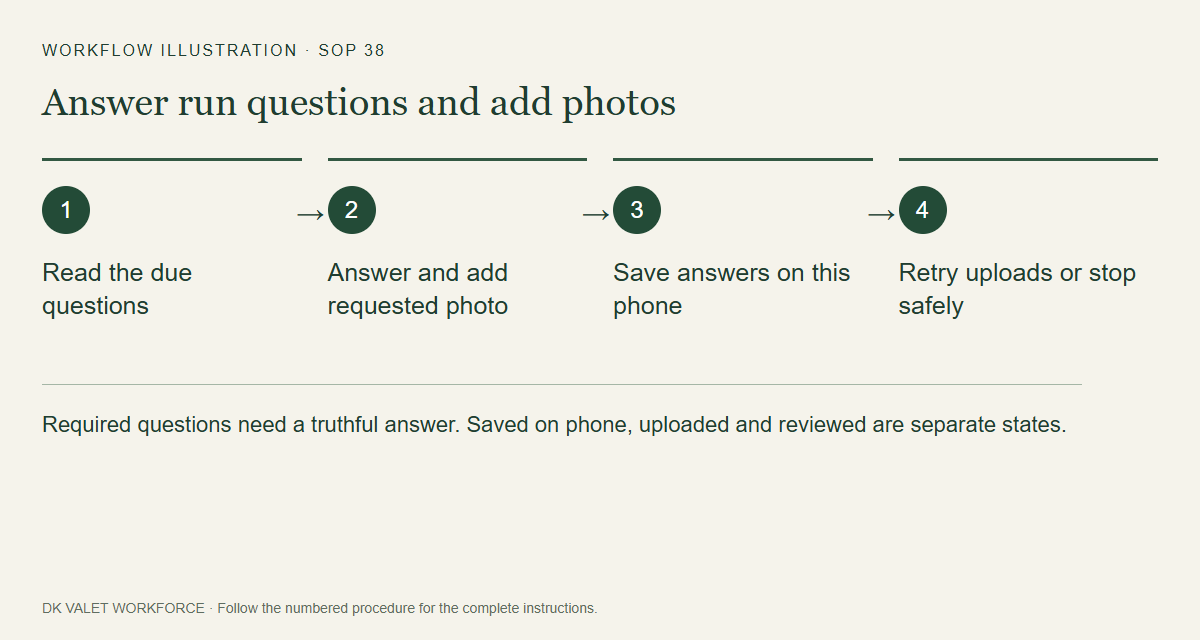
Required questions need a truthful answer. Saved on phone, uploaded and reviewed are separate states. Workflow illustration. Select the picture to enlarge. Step 3 Continue after saving
Optional questions may be skipped; optional photos may be added. Continue when the step’s answers are saved on this phone. Review saved answers to distinguish saved, uploaded and manually reviewed evidence.
Step 4 Recover or stop safely
Use the displayed retry for camera, storage or question errors. If you must stop, use Stop with an exception or Stop route now. Camera work and pending uploads must not delay stopping collection.
Check your result
Saved answers lead to the route; pending uploads remain visible for recovery.
If something goes wrong
Keep the same account and device, reconnect and retry pending answers/photos, including after clock-out. Do not uninstall or clear storage. Manual photo acceptance does not prove service completion or an exact indoor location.