SOP 37 · Associate work · 2026-10-12
Prepare for a shift and clock in
Complete the displayed checks and start an authorized run.
Before you start
Use your assigned account and approved app. Be at the correct property with location services available.
Open My work > Prepare for this shift
Step 1 Verify the shift
Read the selected property, date and time on Prepare your route. Use the schedule if a different assignment should be selected.
Step 2 Resolve start checks
Open the first missing check or See what to do. Refresh checks after access, route, device or policy issues have been corrected. Employees cannot clock in before the scheduled start. Supervisors use Today then Clock in at a property for support work outside a scheduled window. Both must be inside the configured boundary.
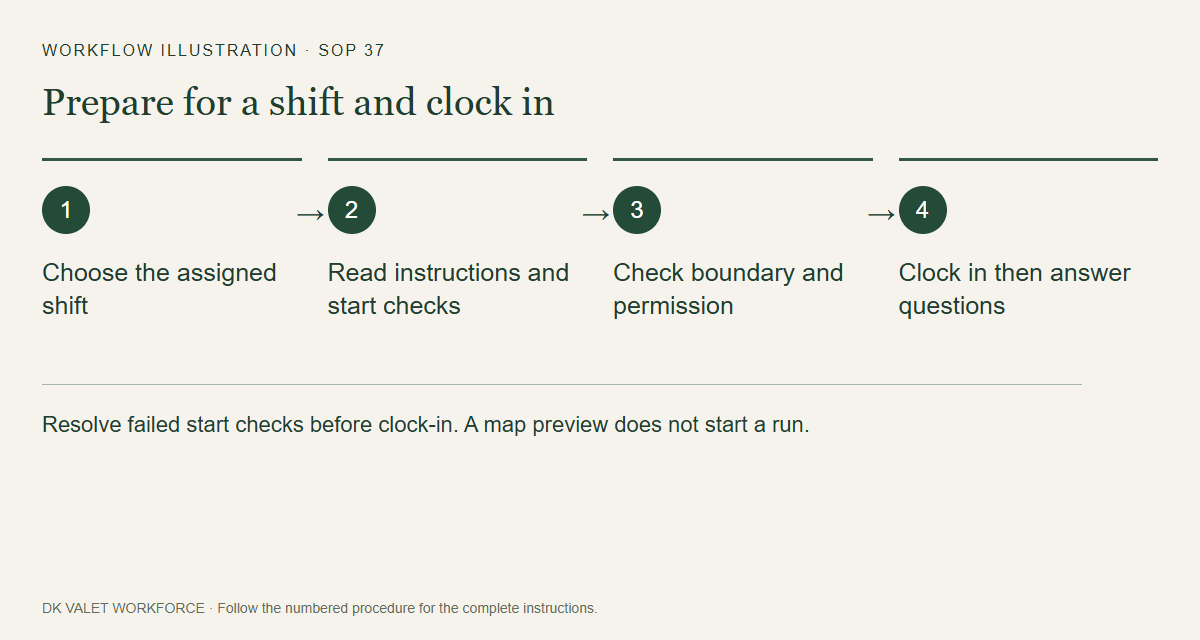
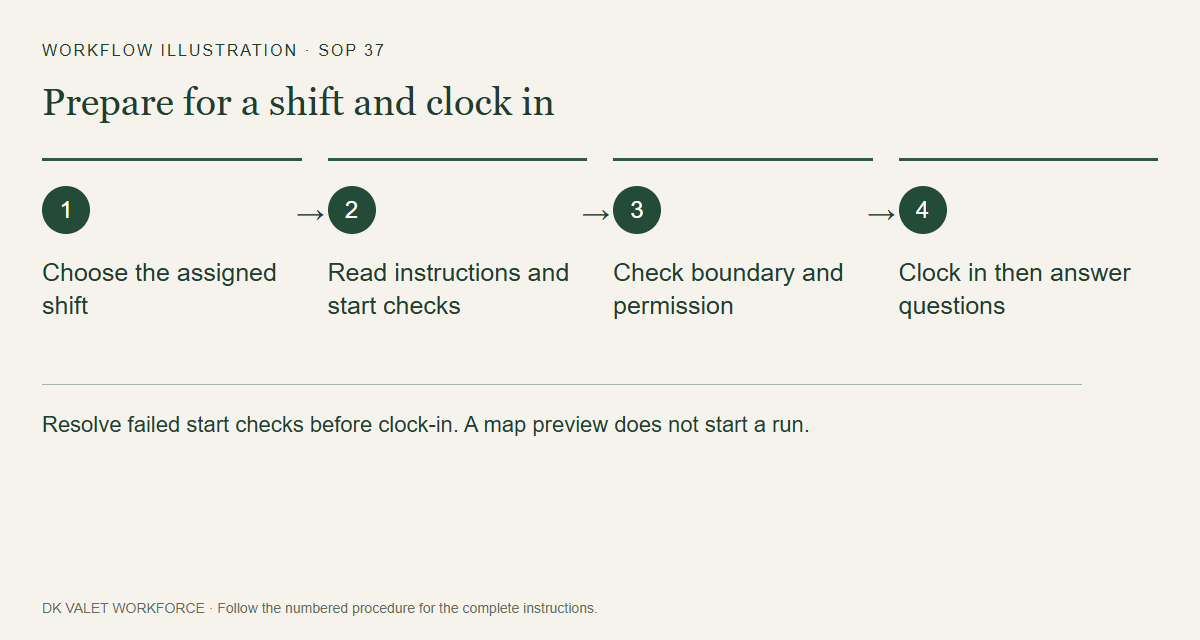
Resolve failed start checks before clock-in. A map preview does not start a run. Workflow illustration. Select the picture to enlarge. Step 3 Read all instructions
Use Next instruction until the last page, then I've read this — continue.
Step 4 Check your position
Open Property map and Show my position. Use directions to a safe entrance and check the measured position and accuracy against the boundary. Previewing does not clock you in.
Step 5 Clock in
When the scheduled time and all other checks are ready, select Clock in. Confirm a second run only if more work is actually needed. Continue to the due run questions and requested photos (SOP 38).
Check your result
Clock-in is accepted and the Run questions step or active route opens.
If something goes wrong
For permission issues use Check location permissions or Open phone settings. For missing access or unpublished units contact the supervisor; repeated start attempts will not fix configuration.