SOP 33 · Associate work · 2026-10-12
View your calendar and accept or decline shifts
Review your assignments and explicitly respond.
Before you start
Confirm the property, date and local time for each assignment.
Open My work > Shifts to accept or View my calendar
Step 1 Open your schedule
Use Shifts to accept for pending replies or View my calendar to browse scheduled work.
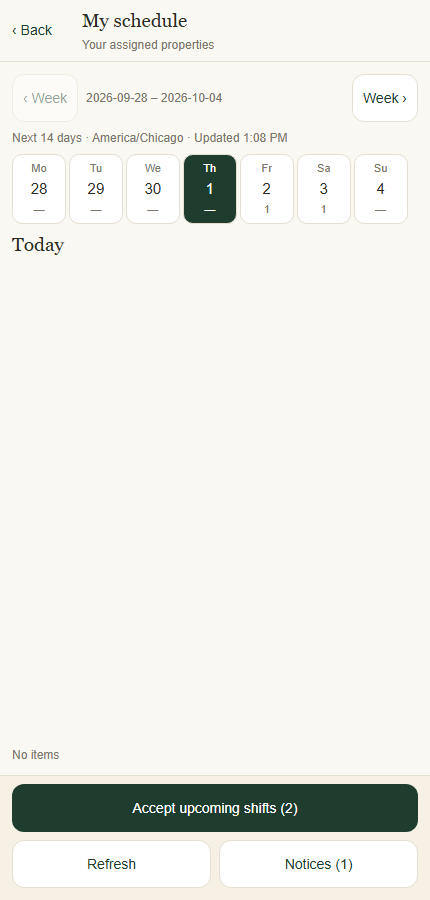
Use the calendar to inspect dates and assigned shifts. Application component preview with training data. Select the picture to enlarge. Step 2 Inspect the shift
Select the relevant date and shift. Read the property, start and end time, instructions and current assignment response.
Step 3 Respond to the assignment
Use the displayed accept or decline control. When selecting several shifts, review the selected list before confirming acceptance.
Step 4 Check the saved response
Wait for confirmation and refresh the schedule. Use Prepare for this shift when it is time to review start checks.
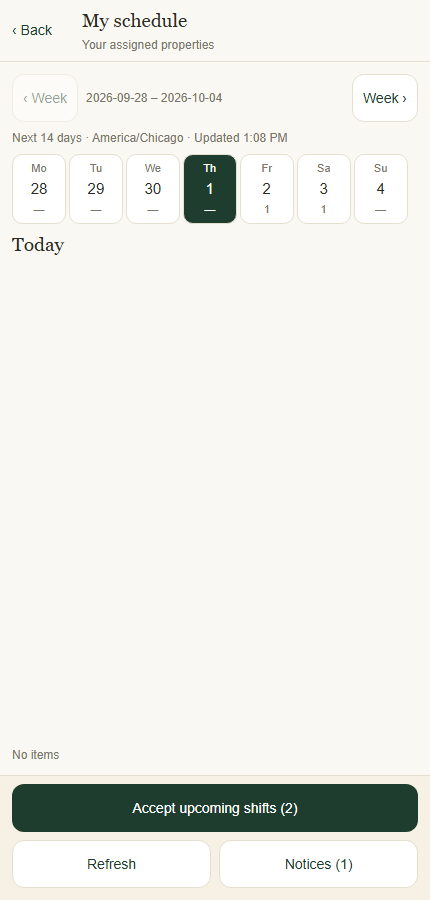
Check your result
The shift shows your saved acceptance or decline response.
If something goes wrong
Acknowledging a schedule notification is separate from accepting a shift. If a response is rejected, refresh the latest schedule.