SOP 05 · Property setup · 2026-10-12
Review the address and save a work boundary
Define the reviewed outdoor boundary used by start checks.
Before you start
Create the property first and verify its address. Only users with boundary editing permission can save.
Open Manage > Property readiness > Review address and draw work boundary
Step 1 Open the property boundary
Select the property, then open Review address and draw work boundary. On mobile open the property readiness boundary task.
Step 2 Inspect the map
Locate the actual property and safe entrances. Verify the saved address and current boundary before drawing.
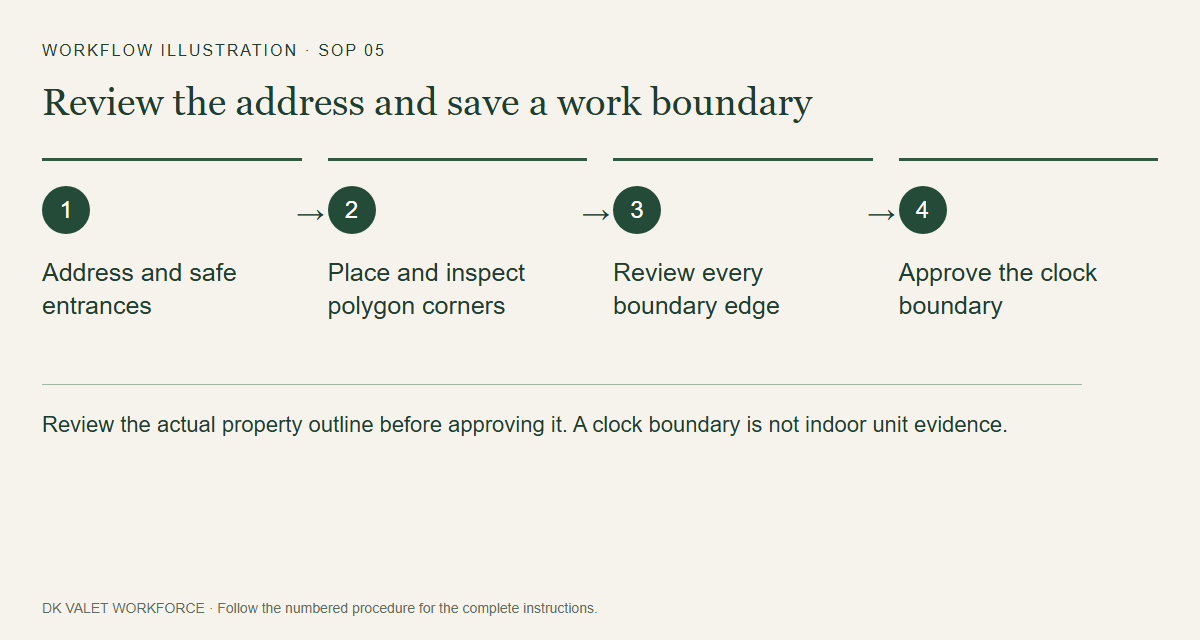
Review the actual property outline before approving it. A clock boundary is not indoor unit evidence. Workflow illustration. Select the picture to enlarge. Step 3 Adjust the boundary
Use the available map boundary controls. For a polygon, place and review its corners around the property. Use the editor instructions to adjust or clear a draft.
Step 4 Review and save
Check the complete outline and any required review fields. Use the boundary save action, wait for confirmation and verify that an active boundary version is displayed.
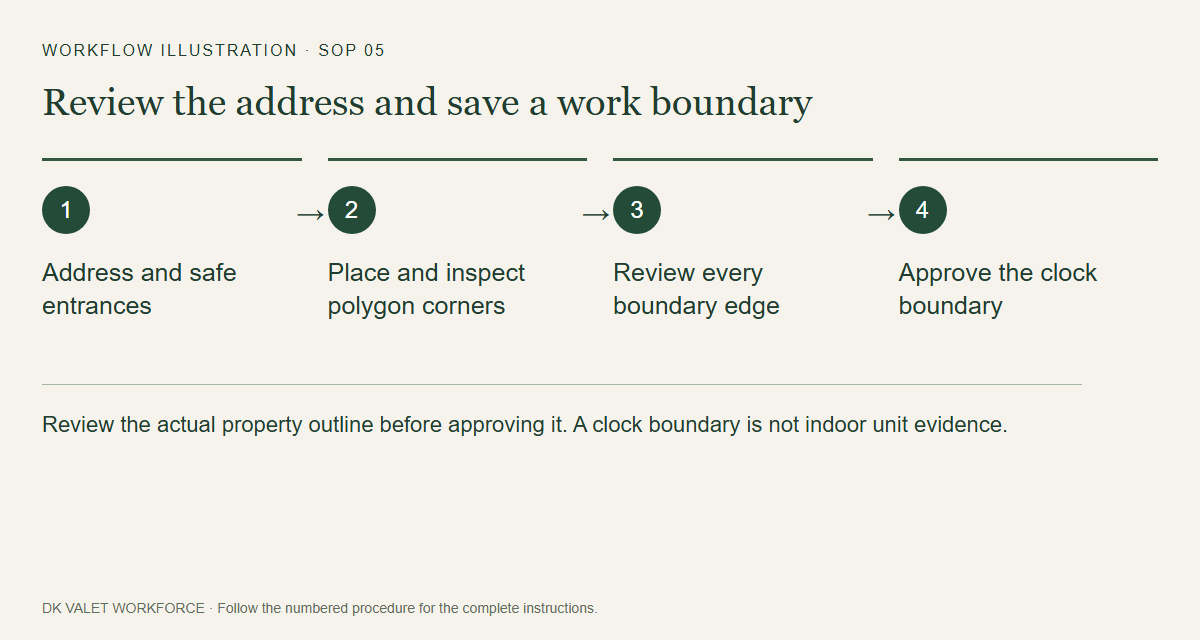
Check your result
Property readiness marks the boundary configured and the map shows the reviewed outline.
If something goes wrong
A missing or inaccurate GPS position requires a fresh location check. Expanding a boundary to conceal a bad position is not a remedy.