SOP 24 · Property setup · 2026-10-12
Finish recover and upload a setup walk
Stop setup recording and verify pending evidence is uploaded.
Before you start
Keep the same phone and account while local evidence is waiting.
Open Active setup > Status or Review and finish
Step 1 Inspect capture status
Open Status to compare saved-on-phone, accepted-by-server, waiting-to-upload and rejected/dropped counts.
Step 2 Recover a paused or interrupted walk
Return to the existing setup task. Use Upload / resume recovery or the displayed retry control for that run; follow any device-ownership warning.
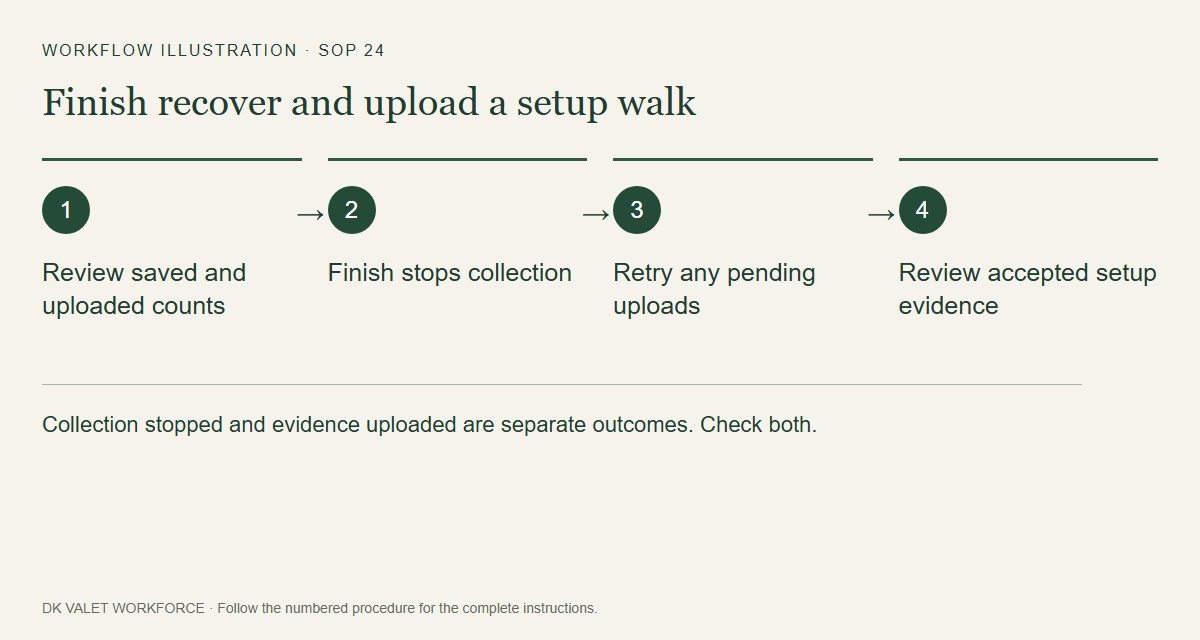
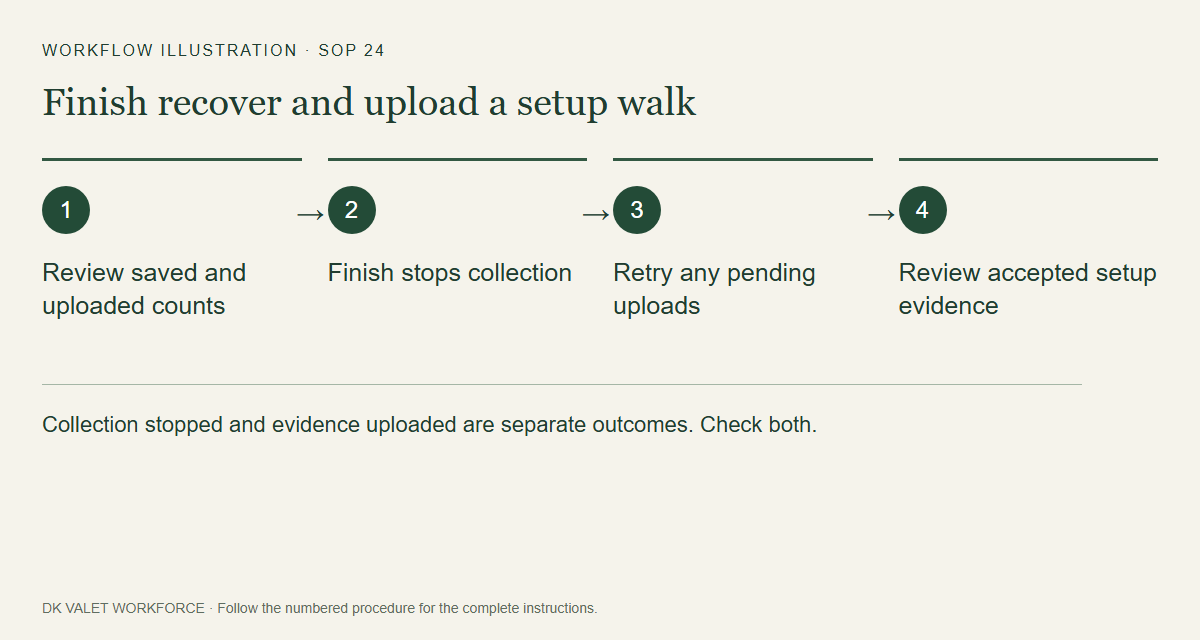
Collection stopped and evidence uploaded are separate outcomes. Check both. Workflow illustration. Select the picture to enlarge. Step 3 Review the finish summary
Use the review-and-finish action. Check units marked and pending batches before confirming Finish.
Step 4 Keep pending evidence available
Finish stops GPS and motion collection. Keep the phone connected and use the upload/recovery action if data remains pending.
Step 5 Open the completed review
Use View last setup or the saved setup run to inspect accepted marks and capture gaps.
Check your result
The setup run is finished and its accepted evidence can be reviewed; any remaining upload issue is explicitly identified.
If something goes wrong
Do not clear app storage or switch accounts to fix a pending queue. If another device owns an active run, contact the supervisor responsible for it.