SOP 22 · Property setup · 2026-10-12
Start a mobile property setup walk
Start an authorized setup recording before marking the unit route.
Before you start
Use the approved sensor-capable app build, a registered device, setup permission and reviewed boundary. Clock out of routine tracking first.
Open Manage > Property > Property readiness & setup runs
Step 1 Choose the property
Open its setup task. Read property instructions or What is recorded? and confirm the address.
Step 2 Choose recording mode
Choose Screen-off or Screen-on only and read the consent text. Screen-on recording pauses when the app is left or the phone locks.
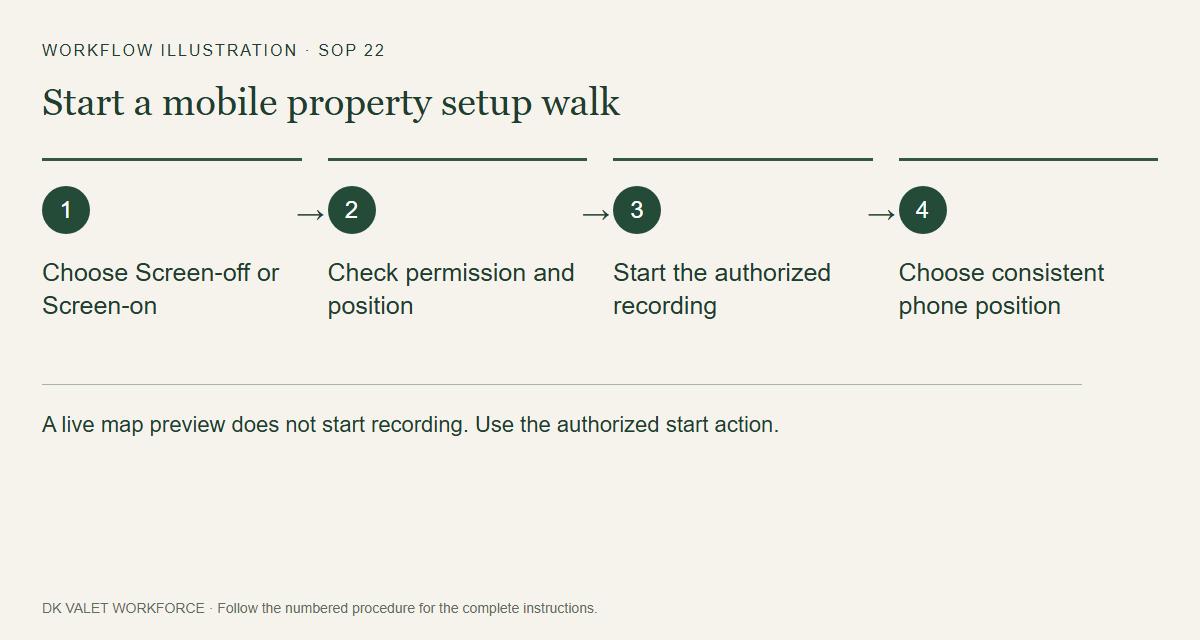
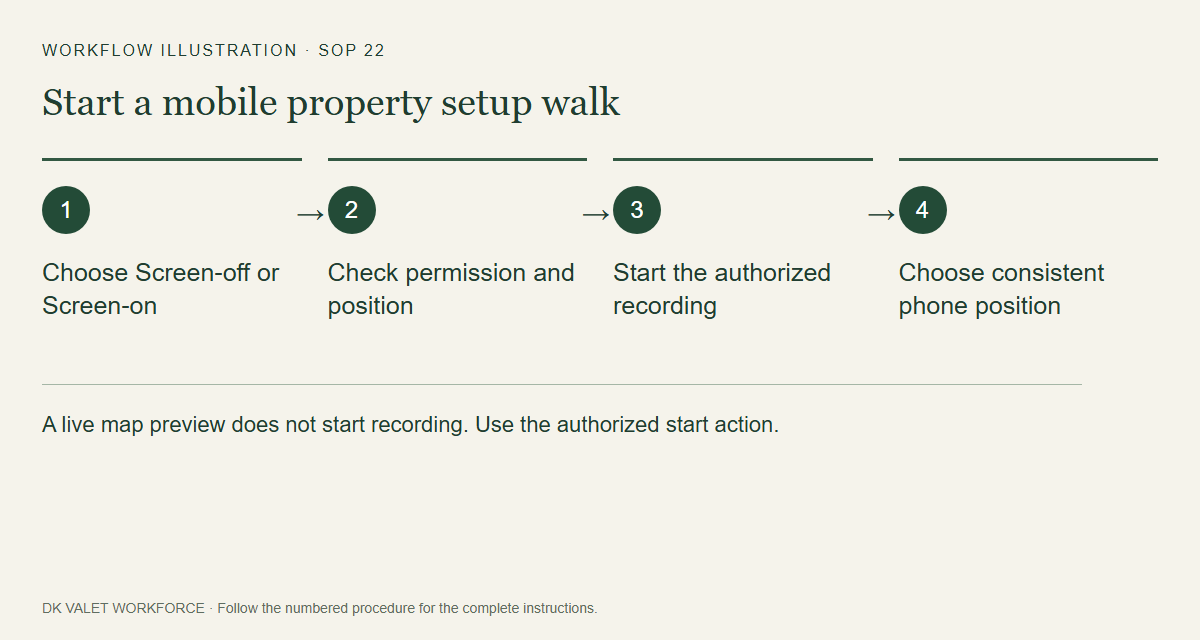
A live map preview does not start recording. Use the authorized start action. Workflow illustration. Select the picture to enlarge. Step 3 Check your position
Tap Show my live position. Allow the requested precise location permissions and move safely to the authorized start area.
Step 4 Start the recording
When start checks pass, use Agree & start background setup or Start screen-on setup. The button depends on the selected mode.
Step 5 Choose phone position
Select where you will carry the phone and keep it there while walking. Confirm the app shows the active setup walk.
Check your result
Walk to the next unit is available and recording status is shown for the selected property.
If something goes wrong
A map preview is not a started setup run. If sensors, permission or boundary checks fail, resolve the displayed issue before starting.