SOP 29 · Advanced administration · 2026-10-12
Publish phase guidance and change a shift phase
Maintain phase-specific notes and choose a phase for an eligible shift.
Before you start
The property must have configured phases. Confirm no active run is being rewritten.
Open Manage > Route guidance
Step 1 Select property and phase
Open Route guidance and choose the property phase in the guidance form.
Step 2 Write and publish guidance
Enter Route notes, Tracked areas and Tricky areas as requested. Add Publication reason and select Publish guidance version.
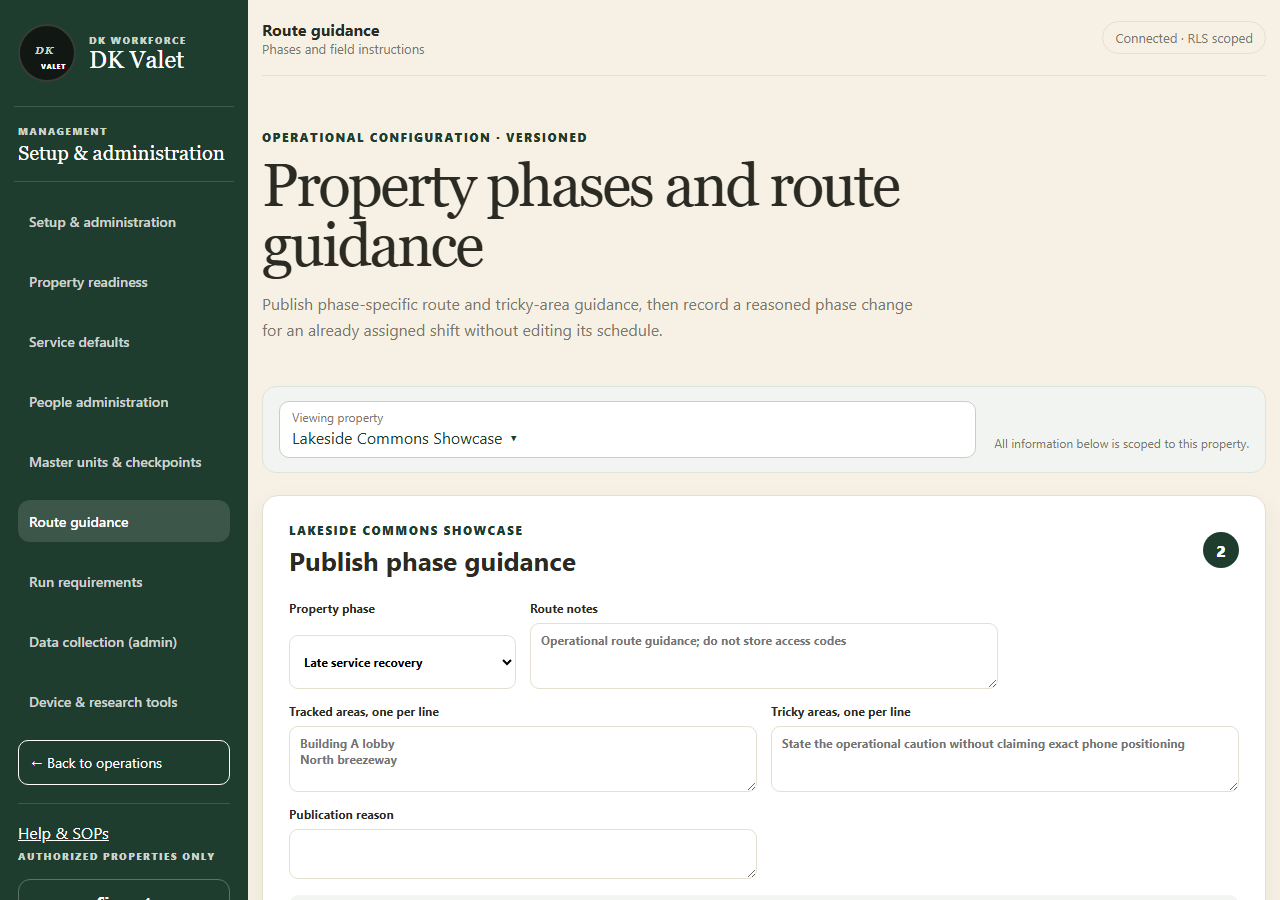
Property phases and route guidance: use the property selector and the task controls shown. Application screenshot with training data. Select the picture to enlarge. Step 3 Change an eligible shift phase
If needed, use Change assigned shift phase. Choose the shift, New property phase and Operational reason.
Step 4 Verify both results
Select Record phase change and check the saved guidance and shift. Active and historical sessions retain their captured configuration.
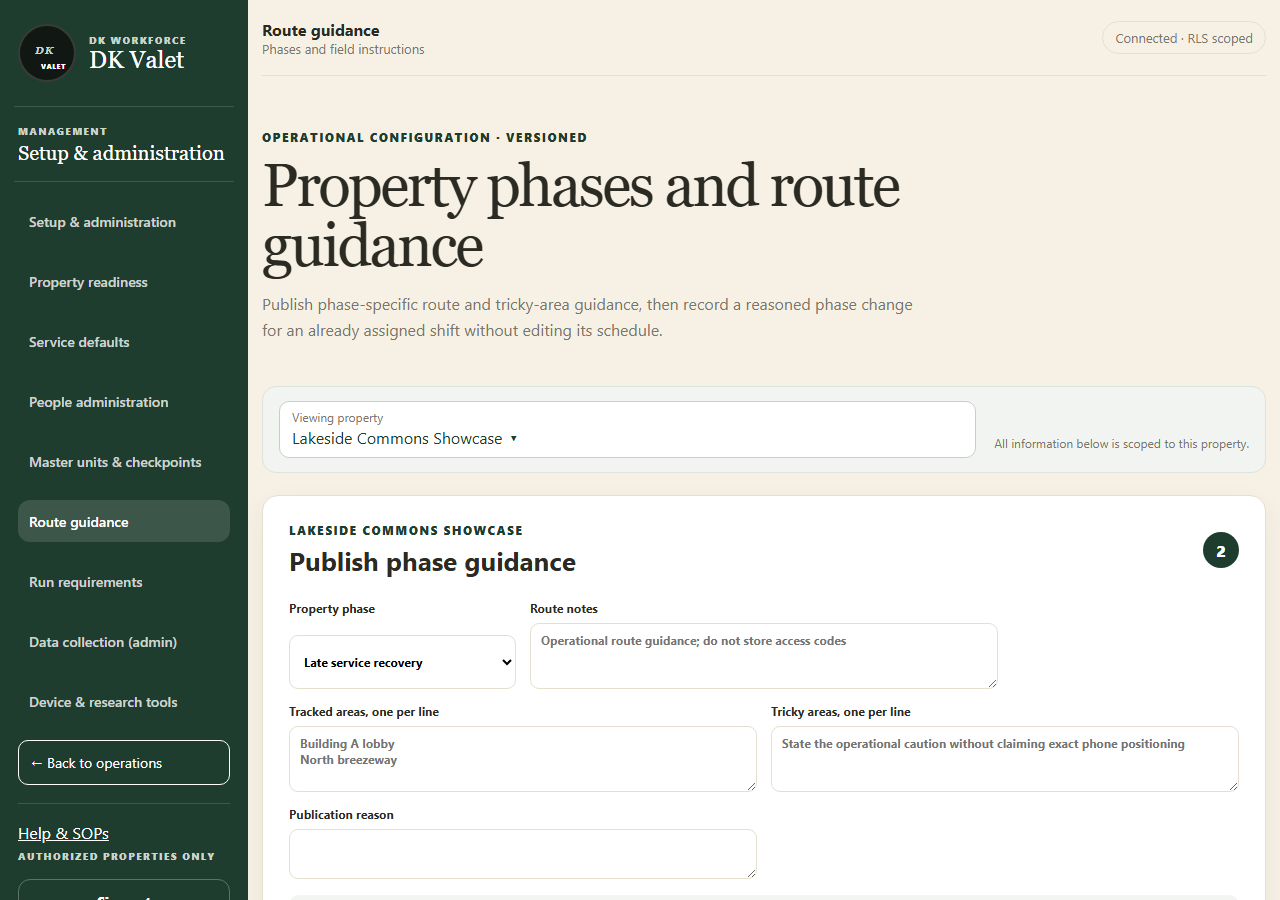
Check your result
Future applicable work uses the saved guidance and the selected eligible shift has the intended phase.
If something goes wrong
If no eligible shifts or phases are offered, review configuration and run status. This action does not create, move or cancel a shift.