SOP 42 · Advanced administration · 2026-10-12
Use tracking safety and emergency controls
Record an authorized effective-dated property tracking control.
Before you start
Verify the exact property and operational reason. These controls affect tracking authorization.
Open Account > Tracking safety & emergency stops
Step 1 Select the property
Open Tracking safety or Remote tracking control and verify the property header.
Step 2 Choose the control
Select the intended enable/disable state. Read the effective start and optional end fields; web control times are explicitly UTC.
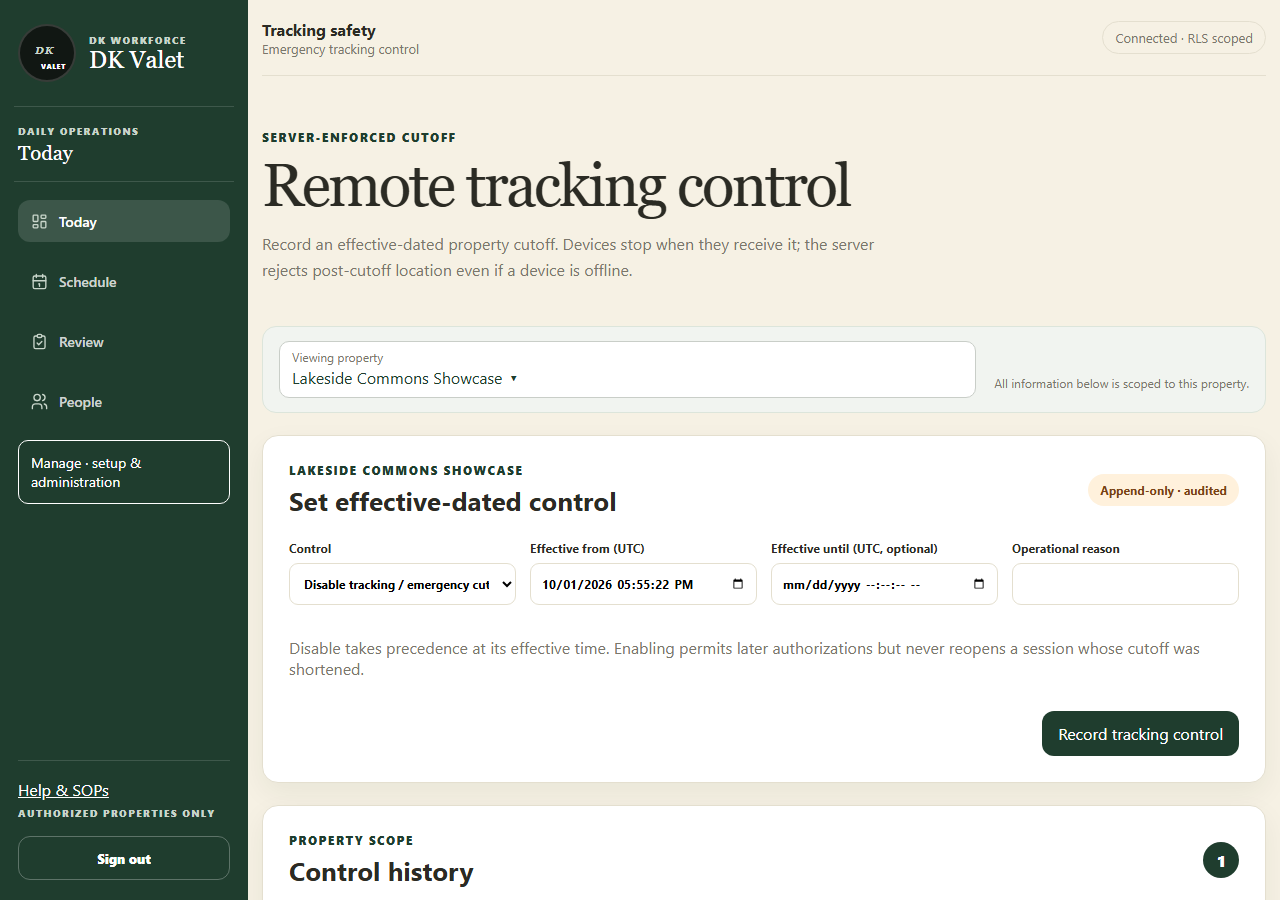
Remote tracking control: use the property selector and the task controls shown. Application screenshot with training data. Select the picture to enlarge. Step 3 Record the reason and save
Enter Operational reason and use Record tracking control. Verify the saved history and effective interval.
Step 4 Follow up on device state
Devices stop when they receive the control. Check the affected run and contact the worker if a phone remains offline or local stop needs attention.
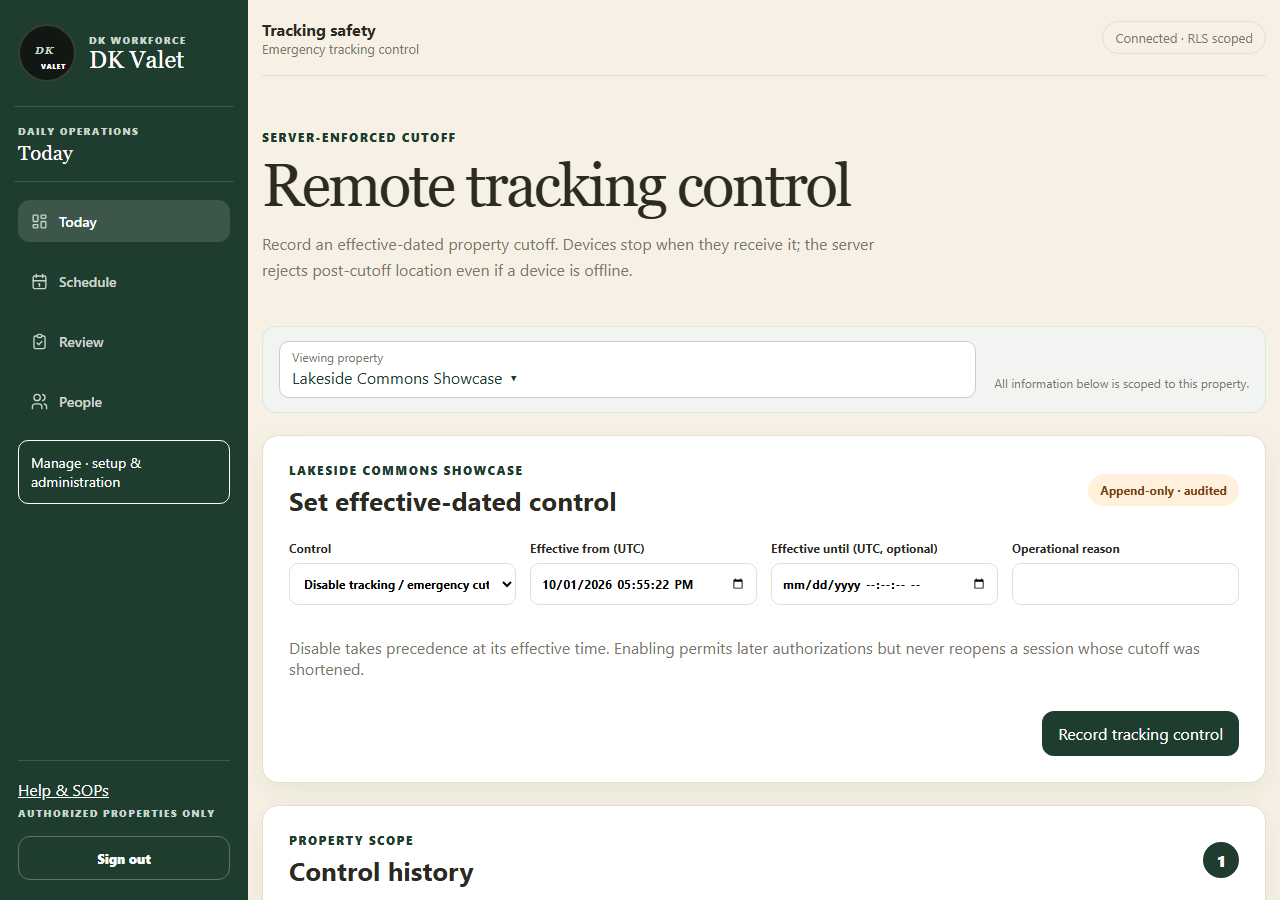
Check your result
Control history shows the intended version and interval; the server rejects post-cutoff collection.
If something goes wrong
An offline phone may not receive a remote instruction immediately. Re-enabling tracking does not bypass assignments, policy or a session cutoff.