SOP 31 · Advanced administration · 2026-10-12
Configure run questions
Publish questions, photo requirements and timing for future runs.
Before you start
Use approved questions and authorized properties. Install Android 69 or iOS 44, or later approved builds, on participating phones before setting expiration dates. Older builds support unlimited questions only.
Open Web: Manage > Property setup > Run questions. Mobile: Operations > Manage > Company run questions, or a property > Run questions.
Step 1 Select the scope
Choose company or property questions and verify the property name. Company questions appear first. Read-only access does not permit publication; company editing requires company administration access.
Step 2 Edit the question
Add or edit the text, clock-in or clock-out step, required answer and none, optional or required photo. Reorder or retire questions in the draft. No questions interrupt an active route.
Step 3 Choose audience and recurrence
Select the applicable properties and employees. Choose every run or a 1–365-day interval per employee and property. An interval advances after an ordinary answer and any attached photo upload, independently of manual review.
Step 4 Set an optional end date
Leave expiration blank for no limit. The chosen date is included in each property’s local time; later newly opened steps omit the question even when its interval is due. Clearing a date removes the limit for future runs.
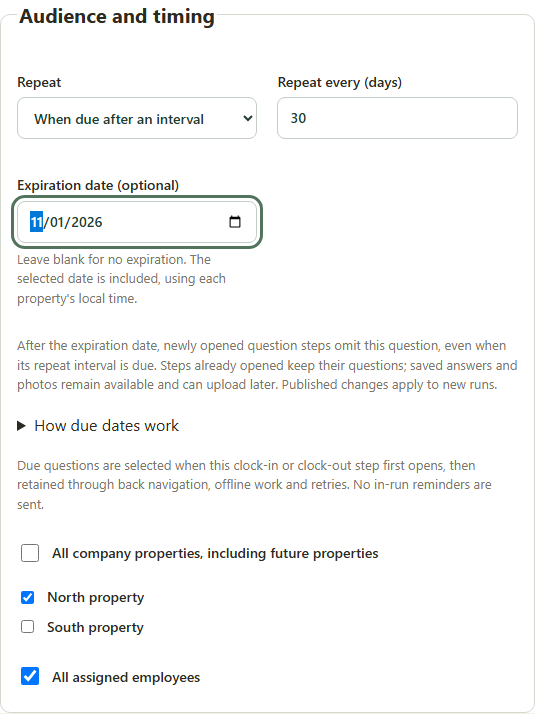
Actual web timing controls with synthetic data. The end date includes the property-local day. This component preview is not a physical-phone screenshot. Application component preview with training data. Select the picture to enlarge. Step 5 Review and publish
Save each question to the draft, enter a publication reason, review the full selected-scope list and confirm publication. Verify the new version. Existing run questions, responses, photos and review history remain unchanged.
Step 6 Handle an unconfirmed result
Use Retry same publication when offered; reload after an access or version change. Confirm the displayed version before making another edit. Unpublished drafts are lost when the app closes.
Check your result
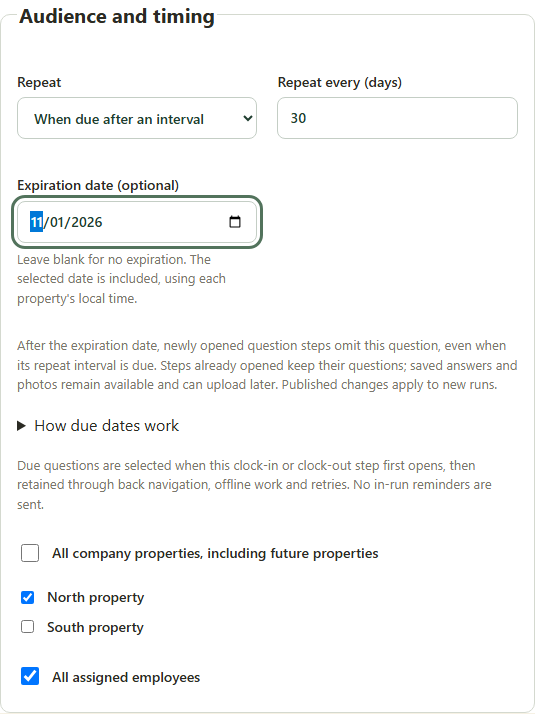
The intended scope shows the new configuration version. No real expiration is set automatically by an app update.
If something goes wrong
A saved draft is not published. A required answer may truthfully be No. Keep all participating phones updated before using expiration; Android 68/iOS 43 reject questions carrying an expiration date.